This article contains affiliate links. We may earn a commission from qualifying purchases.
Some content on this site is AI-assisted and reviewed by our editorial team.
The Thread Group just launched a free app that visualizes your Thread Smart Home network — showing every device, signal strength, and routing path. Here’s how to use it and why it matters.
Thread Tools App: See Your Smart Home Network Like Never Before
If you use Matter devices with Thread networking — and increasingly, you do — you’ve probably noticed something frustrating: there’s no easy way to see what’s happening on your Thread network. No map of which devices are connected, no signal strength indicators, no way to diagnose why a device keeps dropping off.
That just changed. The Thread Group has released the Thread Tools app, a free mobile app that gives you full visibility into your Thread network. Here’s what it does and how to use it.
What the Thread Tools App Does
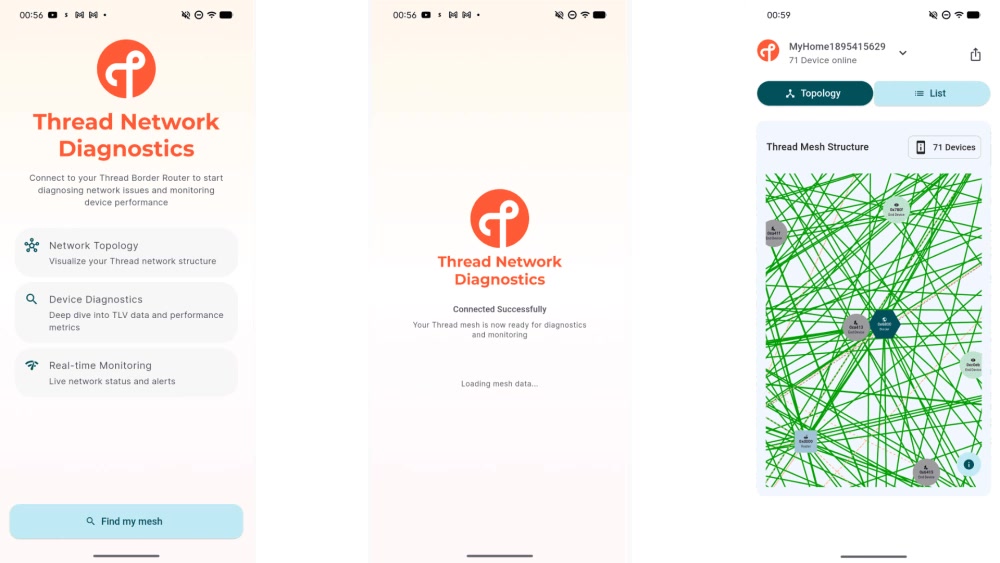
The app provides five key capabilities for anyone with a Thread-based smart home:
- Network health overview: See all Thread networks and Border Routers in your home, with instant highlighting of any conflicts
- Visual topology map: View a real-time diagram showing every Thread device — Border Routers, Extenders, Sleepy End Devices, and Active End Devices — plus the wireless routes between them
- Link quality metrics: Check signal strength (RSSI), link margin, connection time, and timeout data for every device
- Device details: Tap any device to see Mac address, Thread version, operating mode, wireless channel, leader data, and battery level
- Shareable diagnostics: Export network reports with built-in privacy controls (anonymized Mac/IP addresses) to share with support teams
For the first time, you can actually see why your smart lock keeps disconnecting or why your Matter bulbs are slow to respond. It’s like running a network analyzer on your Wi-Fi, but for Thread.
How to Download Thread Tools
The app is in beta but freely available:
Android
Download directly from the Google Play Store. No beta enrollment needed.
iOS
You’ll need Apple’s TestFlight beta system:
- Install the TestFlight app from the App Store
- Tap the Thread Tools beta link
- Follow the prompts to install
How to Use the Thread Tools App
Step 1: Launch the App
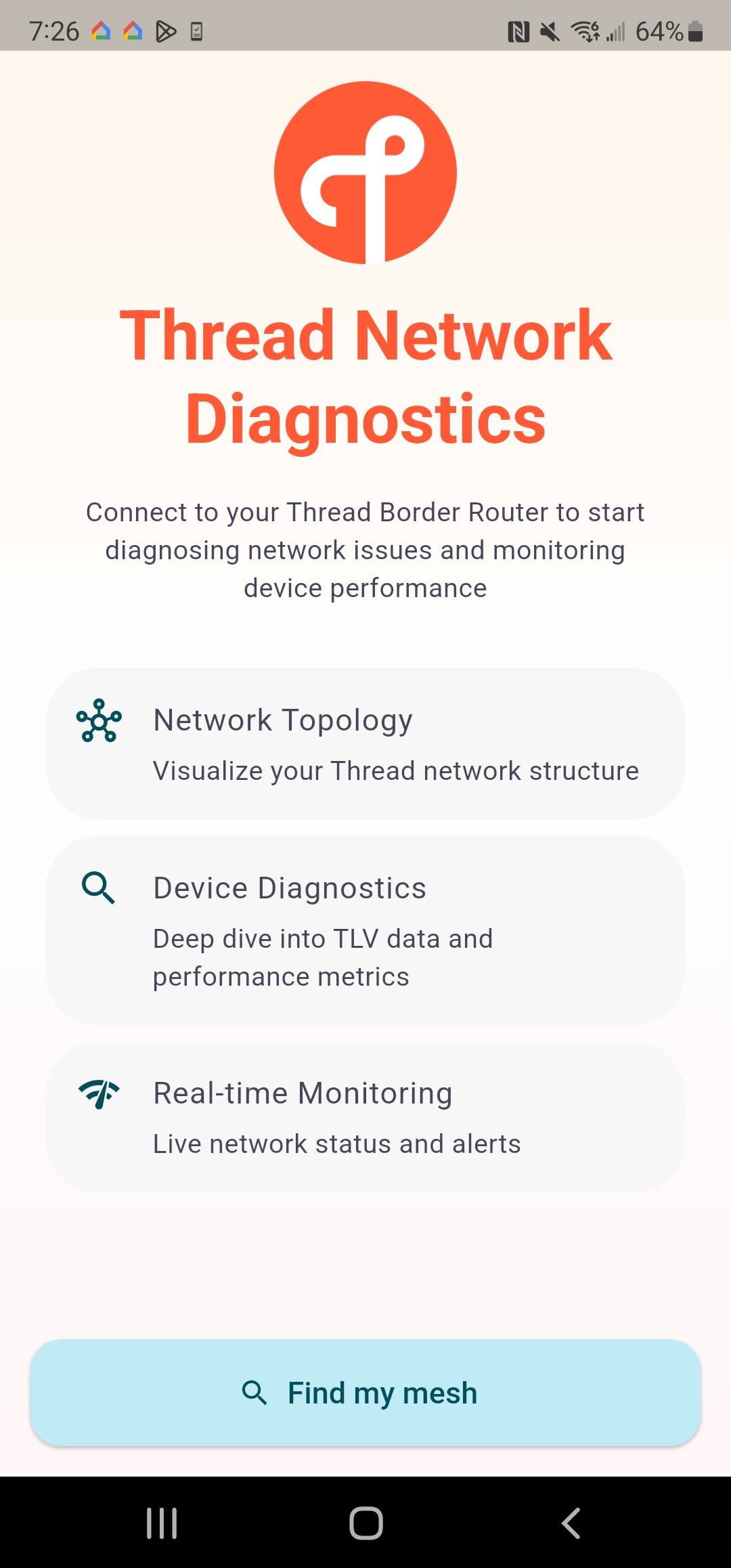
On launch, Thread Tools displays a list of all available Thread networks and Border Routers in range. If you have multiple networks (common in apartments or dense neighborhoods), you’ll see them all listed here, with any potential conflicts highlighted.
Step 2: Select a Network
Tap a network to analyze it. The app scans the network structure — this may take a few moments depending on how many devices are connected.
Step 3: View the Topology
The Topology view shows a visual map of your Thread network. You’ll see:
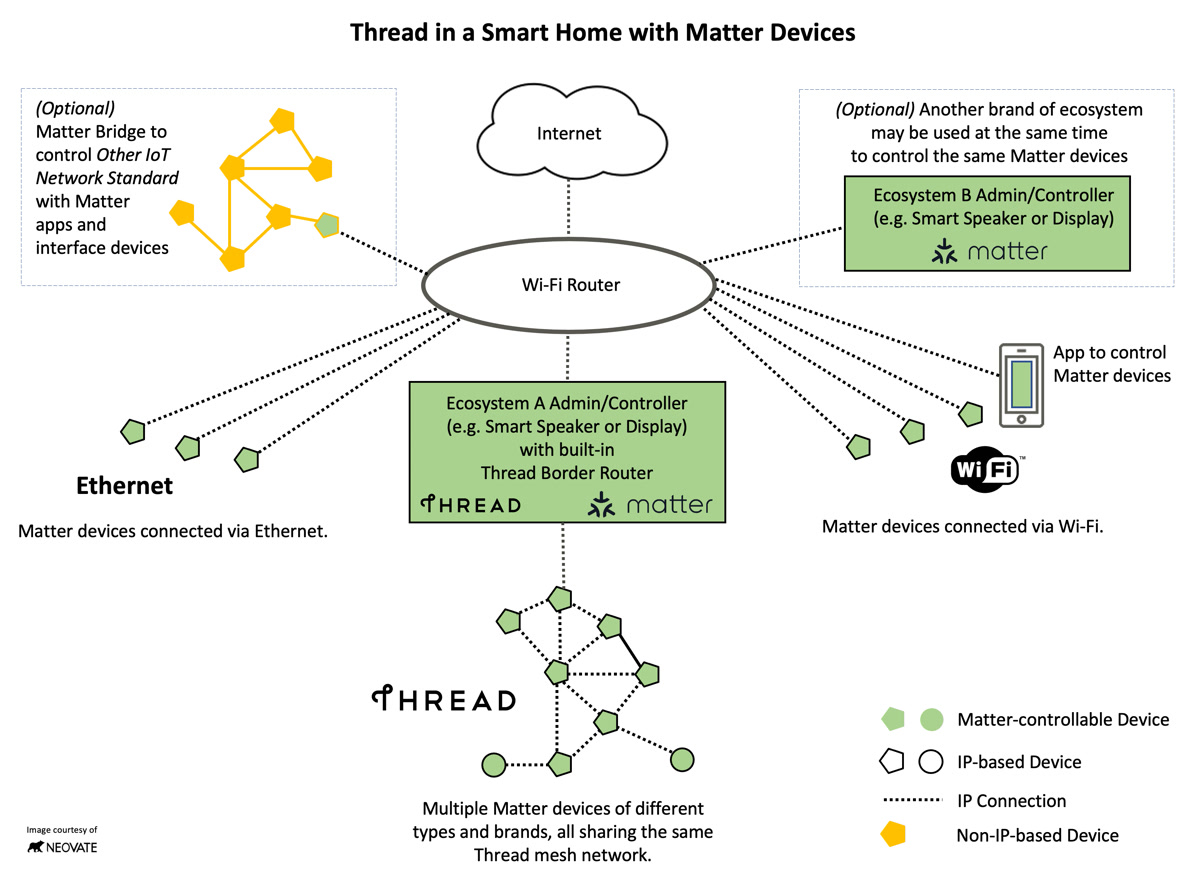
- Border Routers: The devices that connect your Thread network to Wi-Fi (Apple TV 4K, HomePod mini, Echo Gen 4, Google Nest Hub, etc.)
- Extenders: Devices that extend the Thread mesh range
- Sleepy End Devices: Battery-powered devices that wake up periodically (sensors, smart locks)
- Active End Devices: Always-on devices powered by mains
The lines between devices show routing paths, with visual indicators for signal quality. Weak links are easy to spot — look for thin or red lines.
Step 4: Inspect Individual Devices
Switch to the List view to see devices organized by their unique identifiers. Tap any device to see five detail tabs:
- Overview: Mac address, Thread version, device mode
- Network: Wireless channel, network IDs, leader data
- Performance: Quality metrics, sequence routes
- Topology: Connection time, timeout, link margin, average RSSI
- Battery: Current battery level for battery-powered devices
Step 5: Share Diagnostics (Optional)
Tap the share button in the top right corner to export a diagnostic report. The app includes privacy controls that anonymize Mac addresses and device information before sharing — useful if you’re working with a device manufacturer’s support team.
Why This App Matters
Thread is becoming the backbone of the Matter smart home standard, but until now, it’s been a black box. If a Matter device wasn’t working, your options were:
- Restart the device and hope it reconnects
- Restart your Border Router and hope the network rebuilds
- Factory reset everything and start over
With Thread Tools, you can actually diagnose the problem. Common issues the app can reveal:
- Multiple competing Thread networks: If your neighbor’s Thread network is on the same channel, it can cause interference. The app shows all networks in range.
- Poor device placement: A smart lock at the far end of the house might have a weak signal. The topology map and RSSI data make this obvious.
- Border Router issues: If your Border Router is overloaded or misconfigured, the app will show routing anomalies.
- Battery problems: Sleepy End Devices with low batteries can cause network instability. The Battery tab shows levels at a glance.
Thread Tools vs. Home Assistant Diagnostics
If you use Home Assistant, you may already have some Thread network visibility through its integrations. Here’s how Thread Tools compares:
- Visual topology map — Thread Tools: Yes, Home Assistant: No
- Signal strength per device — Thread Tools: Yes, Home Assistant: Limited
- Multi-network detection — Thread Tools: Yes, Home Assistant: No
- Device control/automation — Thread Tools: No (read-only), Home Assistant: Yes
- Battery monitoring — Thread Tools: Yes, Home Assistant: Limited
- Shareable reports — Thread Tools: Yes, Home Assistant: No
- Setup complexity — Thread Tools: Easy (mobile app), Home Assistant: Requires HA server
Thread Tools is read-only — you can’t control devices or create automations. But for network diagnostics, it’s more capable and much easier to use than Home Assistant.
Who Should Use Thread Tools?
You should download Thread Tools if:
- You have Matter devices using Thread (check your device specs — not all Matter devices use Thread)
- You have more than 5-6 Thread devices and want to optimize your network
- You’re experiencing connectivity issues with Matter devices
- You’re a smart home enthusiast who likes to understand how things work under the hood
You probably don’t need it if:
- You have 1-2 Thread devices and everything works fine
- You don’t use Matter/Thread at all (though you probably will soon)
The Bottom Line
The Thread Tools app fills a major gap in the Matter/Thread ecosystem. For the first time, smart home users have a free, easy way to visualize and diagnose their Thread networks without needing a Home Assistant server or developer tools.
It’s a beta, so expect some rough edges. But even in its current state, it’s the best Thread diagnostic tool available for most smart home owners. Download it, run it against your network, and you might be surprised by what you find.
Have you tried the Thread Tools app yet? What did your Thread network topology look like?
🏠 Get Your Free Smart Home Setup Checklist
Join our newsletter and get this free printable plus weekly tips.
Price Check
Prices verified via our product tracker. Updated Sep 27.
| Eve Energy (Matter) 2-Pack - Smart Plug & Power Meter | ap | $76.95 | 4.4★ (319) |
| Onvis Matter Over Thread Smart Plug, Smart Mini Outlet, Wo | $33.99 | 3.8★ |
| Amazon Echo Spot (2024 release) | $219.99 | 4.5★ (45,923) |
| Amazon.com: Google Nest Hub 7” Smart Display with Google A | $99.00 | 4.2★ (1,150) |
As an Amazon Associate we earn from qualifying purchases.