This article contains affiliate links. We may earn a commission from qualifying purchases.
Some content on this site is AI-assisted and reviewed by our editorial team.
Quick self-audit: name every gadget in your house with a microphone. If your list stopped at “the Echo in the kitchen,” you are almost certainly wrong — a typical smart home is running five to ten always-listening mics: speaker, TV remote, doorbell, thermostat, phone assistants, maybe a plug-in hub. Each one ships with the mic on and the privacy settings at whatever default drives engagement, not caution. None of this means smart homes are surveillance machines — but the defaults deserve a fifteen-minute pass, and almost nobody gives them one.
This is the pass. Below are the settings that actually matter, device by device, plus the honest trade-offs — because some “privacy” features quietly break the functionality you bought the gadget for.
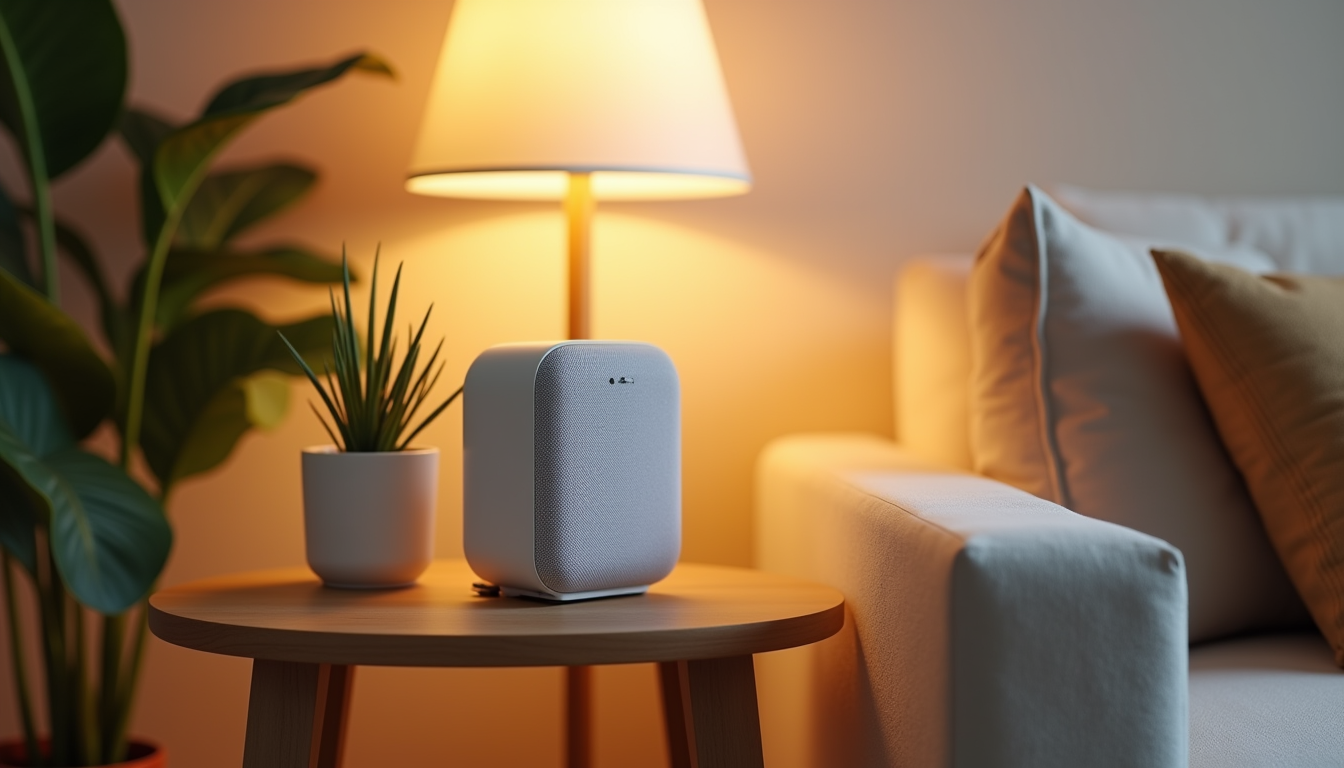
Echo: Turn Off “Help Improve Amazon Services” — And Know What Stays
Alexa’s headline privacy control lives in the Alexa app under Settings → Alexa Privacy → Manage Your Alexa Data. The big three switches: Help Improve Amazon Services (off stops voice recordings from being pulled for human review — the 2019 headline practice), Deletion by Voice (“Alexa, delete everything I said today”), and auto-delete recordings on a 3-month rolling window. Then check Settings → Device Settings → [each device] → AmazonSidewalk if you do not want your connection sharing bandwidth with neighbors’ gadgets.
Worth understanding: voice commands still process in Amazon’s cloud after all of this — local processing exists only on newer devices for basic requests. The physical mic-off button remains the only absolute switch.
Con: turning off voice-purchase or dropping your recording history disables some conveniences — “Alexa, what did I ask yesterday?” style recall stops working entirely.
My take: toggle all three off on day one; you lose almost nothing you actually use. The Echo’s real privacy upgrade is placement — not within earshot of where sensitive conversations happen.
Google Home: The Web & App Activity Dial
Google’s control lives outside the Home app, in your Google Account’s Data & Privacy page under Web & App Activity. Three settings matter: turning off Audio recordings stops Google saving the actual voice clips with your queries, Auto-delete caps retention at 3 or 18 months, and the Hey Google sensitivity sliders per speaker reduce false wakes (the creepy “it lit up when nobody spoke” moments). In the Home app itself, disable Results personalization per device so answers stop leaning on your history.
Con: with audio saving off, Google’s voice recognition can feel marginally less adapted to your household’s accents over time — the training cut goes both ways.
My take: the auto-delete cap is the highest-value toggle in the Google ecosystem; set it once and stop thinking about it.
Wyze Cams: The Settings That Stop Footage Leaving the House
Check the price of the Wyze Cam v4 on Amazon
About $30–40 · 2.4GHz Wi-Fi · microSD local recording supported
Wyze’s 2023 breach — where a system glitch briefly exposed thousands of customers’ camera feeds to wrong accounts — turned “cheap cloud camera” into a running joke, but the hardware is fine if configured defensively. In the Wyze app: turn Events Save to Cloud off for any camera covering a private area so clips stay on the microSD card instead, enable 12-second motion-tagging only, and set Detection Zone boundaries so the cam ignores the sidewalk. Two-factor authentication is non-negotiable on the account.
Con: with cloud events off you lose remote clip review — the app’s live view still works, but history lives on the card in the camera. A stolen camera is a stolen archive; mount accordingly.
My take: the best $35 camera value there is, on the condition that you treat the cloud setting as the product and the hardware as the accessory.
The Doorbell Everyone Forgets Is a Microphone
Video doorbells record the sidewalk, the porch, and every conversation within about 20 feet of your front door — including the mail carrier’s half of every chat and the neighbors’ argument next door. Two checks: narrow the motion/privacy zones so the field of view stays on your property line (several states have two-party recording consent laws — your doorbell’s audio can implicate you, not just your neighbors), and dial audio recording off in the app if your camera only needs to see. Check whether your model uploads rich notifications — thumbnail previews — and disable those if your lock screen sits on a shared desk.
Con: aggressive privacy zones can blind the exact package-dropping spot you bought the thing to watch. Iterate the zone until the sweet spot survives.
My take: ten minutes with the zone editor fixes 90% of doorbell privacy complaints. Most owners never open it.
Router-Level Hygiene: The Setting That Protects Everything Else
Every device above phones home; your router decides how much that matters. Three universal moves: put IoT gadgets on a separate 2.4GHz guest network (most routers expose this for free) so a compromised bulb cannot see your laptop; disable Universal Plug and Play (UPnP) if nothing you own needs inbound ports; and check the router’s own remote-management setting — off unless you specifically administer it from outside the house. If your router is more than six years old and stopped getting firmware updates, the privacy upgrade that beats every setting on this page is replacing it.
Con: the guest-network split adds one network to manage, and some cast-to-TV workflows sulk when the phone and the TV are on different segments.
My take: one network split buys more real security than every individual app toggle combined — start here if you only do one thing.
Common Mistakes (And What to Do Instead)
- Muting with the app instead of the hardware. A muted smart speaker still listens for the wake word in most cases; the physical mic-off button is the only guaranteed quiet.
- Trusting “military-grade encryption” marketing. Encryption protects data in transit, not the collection itself. Ask whether data is collected, not how nicely it is escorted.
- Skipping 2FA on the camera account. A reused password plus no second factor is how doorbell footage ends up on stranger forums. Enable app-based 2FA, not SMS where avoidable.
- Assuming a subscription makes it private. Paid cloud plans usually retain more footage for longer, not less. Free local storage plus paid cloud only where you actually want off-site backup.
What This Is Actually Worth
Nothing on this page saves money directly — it protects it. The realistic cost is fifteen minutes and a few disabled conveniences you will not miss; the upside is bounded downside on the worst-day scenarios (leaked camera feeds, recorded conversations, hijacked accounts). Do the Echo and Google toggles on the couch, the camera settings in the app, the router split on a weekend morning, and you are ahead of the overwhelming majority of smart homes in the country.
If you are starting from zero devices, the smart plugs starter plan covers the cheapest entry point — plugs have no microphones and no privacy homework. And once the privacy pass is done, the home network guide is the natural next layer, since the guest-network split above is exactly where it goes deeper.
CleverHomeClub is reader-supported. As an Amazon Associate, I earn from qualifying purchases. That means if you buy through one of the links above, I get a small commission at no extra cost to you. I only recommend devices I’d run in my own home.
🏠 Get Your Free Smart Home Setup Checklist
Join our newsletter and get this free printable plus weekly tips.