This article contains affiliate links. We may earn a commission from qualifying purchases.
Some content on this site is AI-assisted and reviewed by our editorial team.
Here’s the thing most smart home guides get wrong about seniors: they treat older adults like they’re a product category instead of, you know,people. They slap “senior-friendly” on the same generic device list and call it a day. But if you’ve ever watched your mom squint at a thermostat the size of a postage stamp, or your dad struggle to hear a doorbell from the kitchen, you know the real problem isn’t a lack of cool gadgets — it’s that most tech was designed by 30-year-olds who assume everyone can read 8-point font and navigate a touchscreen blindfolded.

Smart home technology can be genuinely life-changing for older adults. Not in the “ooh, look what my phone can do” way, but in the “I can finally stay in my own home safely and independently” way. The right setup can prevent falls, remind you to take medications, let your kids check in without hovering, and eliminate a dozen small frustrations that pile up when your eyes, ears, or hands aren’t what they used to be.
The trick is choosing devices that solvereal problems and then setting them up so they just work — no daily app-fiddling required. This guide starts from the actual challenges older adults face and matches them to devices that actually help. No filler. No tech-for-tech’s-sake. Just stuff that works.
The
Golden Rule: If It Needs an App More Than Once, It Failed
Before we get into specific devices, memorize this:a smart home device is only smart if it disappears into your life. If you have to open an app to make it work day-to-day, it’s the wrong device — or it’s set up wrong.
The best smart home setup for seniors is one that runs on autopilot. Lights turn on when you walk into a room. The thermostat adjusts itself. The doorbell announces visitors out loud. You shouldn’t need to tap, swipe, or configure anything after the initial setup. That initial setup? That’s what family members are for. (Or a tech-savvy friend. Or honestly, most Best Buy locations will do it for a fee.)
Now let’s get into the real problems — and the devices that actually solve them.
“I Can’t See Who’s
at the Door” — Video Doorbell
The problem: You hear a knock, but getting to the door fast enough — or seeing who’s there through a peephole — is tough. And opening the door to a stranger? That’s a safety risk nobody should have to take.

The device:Ring Video Doorbell 4 with a Ring Chime (the plug-in speaker you put inside, turned uploud).
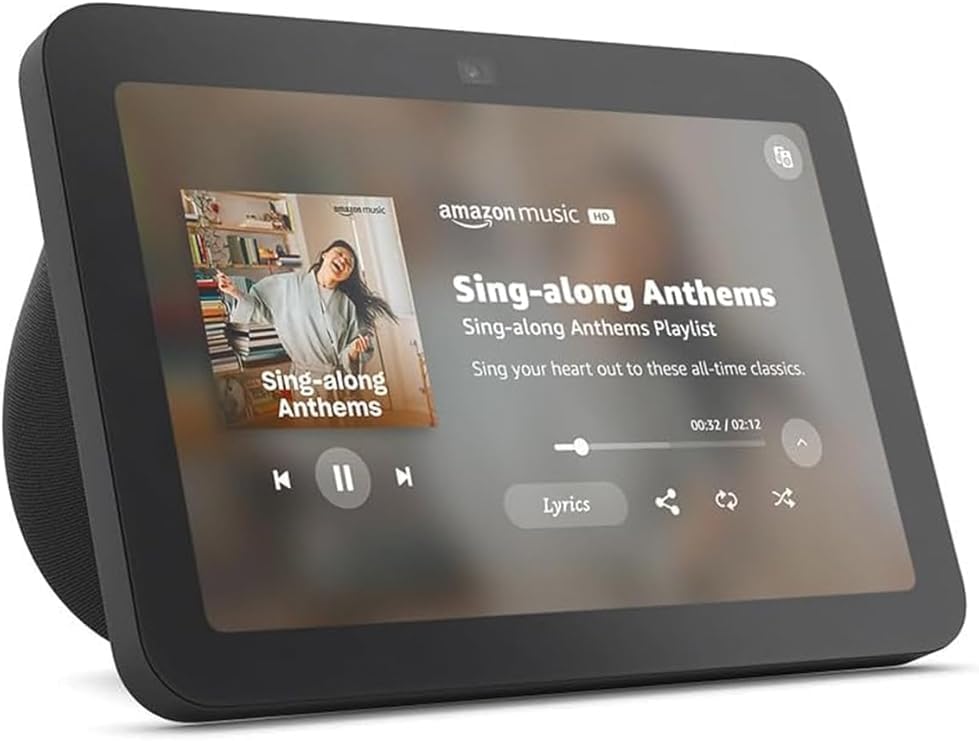
Here’s why this combo works: when someone rings, the chime blasts inside your home at whatever volume you need. No more missing the doorbell because you were in the backyard or the hearing aids were out. The video feed lets you see who’s there from any room — on a phone, tablet, or anEcho Show 8 sitting on the kitchen counter (more on that below). You can even talk to the visitor through the doorbell without opening the door.
Setup difficulty: Moderate. Needs a Wi-Fi connection and either existing doorbell wiring or the battery version. Have someone help with the physical install — it takes about 20 minutes.
Who it helps most: Anyone with mobility limitations, hearing loss, or safety concerns about unexpected visitors.
“I Keep
Forgetting My Pills” — Smart Pill Dispenser
The problem: Medication management is one of those things that sneaks up on you. One pill becomes three, three become seven, and suddenly you’re staring at a weekly organizer wondering if today is Tuesday or Thursday and whether you took the blue one already.
The device:Hero smart pill dispenser.
Hero is different from those plastic day-of-the-week organizers because itdispenses the right pills at the right time. You load up to 90 days’ worth of medications, tell the app the schedule, and at each designated time, it dispenses the correct combination with an audible alarm and flashing light. No sorting. No guessing. No “did I or didn’t I?” moments. It even sends alerts to a family member if a dose is missed.
Yes, it requires a subscription. That annoys me too. But compared to the cost of a medication mistake — missed doses, double doses, hospital visits — it’s worth every penny.
Setup difficulty: Moderate. The initial loading takes some time, and you’ll want a helper for that. After that, it runs on its own.
Who it helps most: Anyone taking 3+ daily medications, especially people with mild memory concerns.
“I’m Worried
About Falling” — Smart Fall Detection
The problem: Falls are the number one reason seniors lose independence. One bad fall — especially one where you can’t get up or reach a phone — changes everything. Traditional “I’ve fallen and I can’t get up” pendants work, but only if you remember to wear them and press the button. That’s two big “ifs.”

The device:Apple Watch SE (for active seniors comfortable with a smartwatch) orMedical Guardian (for those who prefer a simpler dedicated device).
The Apple Watch SE has built-in fall detection that automatically calls emergency services if it detects a hard fall and you don’t respond within 60 seconds. It texts your emergency contacts too. You don’t have to press anything. You don’t have to remember to wear a separate pendant — it’s a watch you’d wear anyway. Plus it tracks steps, heart rate, and has large, readable complications you can customize.
For someone who doesn’t want a smartwatch, Medical Guardian offers dedicated fall detection pendants and wristbands. Simpler, but still automatic — no button press needed for detection.
Setup difficulty: Easy (Apple Watch) to Moderate (Medical Guardian requires a base station).
Who it helps most: Anyone with fall risk — which, honestly, is most people over 75 whether they admit it or not.
“The
Thermostat Buttons Are Too Small” — Smart Thermostat with Voice
Control
The problem: Modern thermostats are a crime against usability. Tiny screens, touch controls with no tactile feedback, nested menus for basic functions. If you have arthritis, neuropathy, or just fingers that aren’t precision instruments anymore, adjusting the temperature becomes a daily frustration.
The device:Nest Learning Thermostat.
The Nest solves this two ways. First, its actual display is bigger and clearer than most thermostats. Second — and this is the game-changer — you can control it entirely by voice through Alexa or Google Assistant. “Alexa, set the living room to 72 degrees.” Done. No buttons. No squinting. No getting up from your chair.
The “learning” part matters too. After a week or two, the Nest figures out your patterns and adjusts automatically. It knows you like it cool at night and warm in the morning. It turns itself down when nobody’s home. Over time, you interact with it less and less — which is exactly the point. Check out ourbest smart thermostats for 2026 guide for more options.
Setup difficulty: Moderate. Requires HVAC compatibility check and physical installation. Once it’s on the wall and connected to Wi-Fi, it mostly takes care of itself.
Who it helps most: Anyone with dexterity issues, vision challenges, or who just wants “set it and forget it” temperature control.
“I
Can’t Hear the Doorbell or Phone” — Smart Speaker with
Announcements
The problem: Hearing loss doesn’t just mean you miss conversations. It means you miss doorbells, phone calls, timers going off, and alarm clocks. And turning up the volume on everything to eleven isn’t a real solution — it’s annoying and still easy to miss.
The device:Echo Show 8.
The Echo Show 8 is the best smart speaker for seniors because it combinesloud, clear audio with ascreen you can actually see. When someone rings the doorbell (your Ring, from earlier), it announces it out loud AND shows the video feed. When you get a call, it rings loudly and shows who’s calling. You can set reminders that announce themselves: “It’s 3 o’clock — time for your blood pressure medication.”
The screen matters more than you’d think. You can video call family members by just saying “Alexa, call my daughter.” No dialing, no finding glasses, no navigating menus. Family members can also drop in — essentially a video intercom — which is great for quick check-ins without the formality of a phone call.
For more smart speaker options, see ourbest smart speakers for 2026 roundup.
Setup difficulty: Easy. Plug it in, connect to Wi-Fi, link your contacts. The hardest part is deciding where to put it.
Who it helps most: Anyone with hearing loss, vision challenges, or who wants an easy way to stay connected with family.
“I
Need Help But Can’t Reach a Phone” — Voice-Activated Emergency
Calling
The problem: You fall in the bathroom. Your phone is in the kitchen. Or you’re having chest pain and your fingers are shaking too much to dial 911. The “keep your phone with you” advice is great until it isn’t.

The device:Alexa Together (paired with any Echo device).
Alexa Together is a subscription service ($20/month) that turns any Echo speaker into a hands-free emergency alert system. You say “Alexa, call for help” and it connects you to a 24/7 emergency response agent. You don’t need to find your phone. You don’t need to unlock anything. You don’t even need to be near the Echo — just loud enough for the microphone to pick you up.
It also includes a feature where family members can get alerts if no activity is detected by a certain time, which is a gentler way to check in than calling every morning. And the remote assistance feature lets a trusted contact help with things like setting reminders or adjusting settings on the Echo — from their own phone.
This pairs perfectly with the Echo Show 8 above. One device, two critical functions.
Setup difficulty: Easy. It’s all software configuration through the Alexa app. Have a family member set it up.
Who it helps most: Anyone living alone, anyone with mobility limitations, anyone who’s ever thought “what if I couldn’t reach my phone?”
“I Keep
Leaving the Stove On” — Smart Stove Shut-Off
The problem: You put soup on the stove, sit down to watch TV, and two hours later realize you never turned it off. Or worse — you don’t realize. Burned pots are one of the most common household hazards for older adults, and the consequences range from ruined cookware to kitchen fires.
The device:iGuardStove.
iGuardStove is a device that sits between your stove and the power outlet (or gas line, for gas stoves). It monitors how long the stove has been on, and after a set period — say, 30 minutes with no motion detected in the kitchen — it automatically shuts the stove off. You can set the timer, and it flashes and beeps before shutting off so you can override it if you’re actually slow-cooking something.
This is the kind of device nobody wants to need, but everyone with an aging parent should consider. It works silently in the background, doesn’t require any daily interaction, and prevents one of the most dangerous and common mistakes seniors make at home.
Setup difficulty: Moderate to Hard. Requires installation near the stove’s power supply. Get an electrician or handy family member to do it.
Who it helps most: Anyone who has ever forgotten a stove on — which, if we’re being honest, could be any of us. But especially anyone with mild cognitive impairment or a history of close calls.
“Lights Are
Hard to Reach” — Voice-Controlled Lighting
The problem: The lamp across the room requires getting up and walking over in the dark. The overhead light has a pull chain you can never find. The porch light switch is behind a shelf. When getting around is already a challenge, every unnecessary trip across a dark room is a fall risk.

The device:Philips Hue starter kit +Echo Dot.
This is the combo that wins people over to smart home tech more than anything else. “Alexa, turn on the living room light.” “Alexa, turn on the porch.” “Alexa, turn everything off.” No walking. No reaching. No fumbling for switches in the dark.
The Hue system also lets you set up automations: porch light on at sunset, bedroom light on at 7 AM, all lights off at 10 PM. Once these are set up, you never have to think about them again. The lights just work.
One important tip: get the Philips Hue Bridge version, not the Bluetooth-only bulbs. The Bridge lets you control lights from anywhere in the house and set up automations. Bluetooth bulbs require you to be in the same room, which defeats the purpose.
And here’s something a lot of guides won’t tell you — check our post onsmart home beginner mistakes to avoid the most common pitfalls when setting up your first devices.
Setup difficulty: Easy to Moderate. Screw in the bulbs, plug in the Bridge, pair with Alexa. The initial setup takes about 30 minutes for a few rooms.
Who it helps most: Anyone with mobility limitations, anyone who gets up at night (bathroom trips at 2 AM are a major fall risk), anyone tired of walking into dark rooms.
“I
Want to Check on My House When I’m Away” — Simple Security Camera
The problem: You’re visiting family for the weekend. Or you’re in the hospital for a few days. Or you just want to see if the package was delivered. You need a way to check on your home that doesn’t require a computer science degree.
The device:Wyze Cam v4.
Wyze cameras are the best balance of simple, affordable, and reliable. For under 40 dollars, you get a camera that connects to your Wi-Fi, shows you a live feed on your phone, and sends motion alerts when something moves. The v4 has better night vision and a built-in spotlight, which means clearer footage even in total darkness.
The Wyze app is straightforward: open it, see your camera, tap to view live. No subscription required for basic features. You can add an SD card for local recording, or pay a small monthly fee for cloud storage. Either way, it’s simple enough that most seniors can check it themselves after a 5-minute tutorial.
Place one at the front door, one in the main living area, and you’ve got basic peace of mind without a full security system.
Setup difficulty: Easy. Plug it in, download the app, follow the prompts. Takes 5 minutes per camera.
Who it helps most: Anyone who travels, anyone concerned about home security, or family members who want to remotely check in (with permission, of course).
“I
Forget to Lock the Door at Night” — Smart Lock with Auto-Lock
The problem: You get into bed, settle in, and then that nagging thought: “Did I lock the front door?” You could get up and check. Or you could lie there worrying about it. Neither option is great when you’d rather just go to sleep.
The device:August Wi-Fi Smart Lock.
August locks are the best choice for seniors because they installon top of your existing deadbolt — you keep your physical key, your existing lock hardware, and the lock still works normally if the battery dies or Wi-Fi goes down. No replacing the whole lock mechanism.
The killer feature is auto-lock. Set it to lock automatically after 2 minutes, and the door locks itself every time it closes. No remembering. No getting out of bed. No second-guessing. You can also check if the door is locked from your phone, lock it remotely, and give family members their own access codes instead of hiding a key under the mat (which, let’s be honest, isn’t fooling anyone).
For more on choosing the right smart lock, see oursmart lock buying guide.
Setup difficulty: Moderate. Installation takes about 15 minutes. The app setup is straightforward, and auto-lock settings are easy to configure.
Who it helps most: Anyone who has ever worried about whether they locked the door, anyone with mobility issues who doesn’t want to make extra trips, anyone who wants family members to be able to check on them.
Where to Start: Priority
Setup List
If you’re setting up smart home devices for a parent or loved one, don’t try to do everything at once. That’s how you end up with 10 half-configured devices and a frustrated senior who wants to throw it all in the trash. Start here:
Week 1 — The Essentials (Safety First): – Echo Show 8 + Alexa Together — voice-activated help and communication – Smart lighting in the bedroom and bathroom — fall prevention starts with being able tosee
Week 2 — Security and Peace of Mind: – Video doorbell — know who’s there before opening the door – Smart lock with auto-lock — never worry about the front door again
Week 3 — Quality of Life: – Smart thermostat — comfort without fiddly buttons – Smart pill dispenser — if medication management is a concern
Month 2 — If Needed: – Fall detection — for anyone with fall risk – Stove shut-off — if this has been a problem – Security camera — for travel or remote check-ins
The key is setting up each device fully, testing it, and making sure your loved one is comfortable with it before adding the next one. One working device is better than ten confusing ones.
And remember: set these upwith the person who’ll be using them, notfor them. Show them the voice commands. Let them try it. Make sure they know how to get help if something goes wrong. Smart home tech only works if the person it’s designed for actually trusts it.
The whole point of this technology isn’t to make seniors dependent on gadgets. It’s to remove the small barriers that steal independence bit by bit — the dark room you can’t navigate, the thermostat you can’t read, the door you’re not sure is locked. Solve those problems well, and the technology disappears. Which is exactly what it should do.
n
The Bottom Line
Start with the devices that deliver immediate value, then expand as budget allows. The best smart home is one that works so smoothly you forget it is there.
My take: Start with the devices that solve a real problem for the person in front of you — the doorbell they can’t hear, the dark hallway that risks a fall — and set each one up with them, not for them. One device that disappears into their routine beats a houseful of gadgets nobody trusts.
Related guides
- Smart Home Smart Speaker Showdown (2026): Echo vs Nest vs HomePod — Which One Sounds Best and Works Best?
- Smart Home Backyard and Patio Guide: Devices That Work Outside
- Smart Home Gift Guide: What to Buy for People Who Just Got Their First Smart Device
- Ring Intercom: Smart Home Security for Apartment Renters
- 10 Weekend Smart Home Projects You Can Build in 2026 (Each Under $100)
🏠 Get Your Free Smart Home Setup Checklist
Join our newsletter and get this free printable plus weekly tips.
Frequently Asked Questions
What’s the golden rule for smart home devices for seniors?
If it needs an app more than once, it failed. A senior’s setup should run on autopilot — lights on when they walk in, the thermostat adjusting itself, the doorbell announcing visitors out loud — with family doing the initial setup once. Anything that requires daily app-fiddling is either the wrong device or it’s set up wrong.
Which devices should families set up first for an older parent?
Safety first, in this order: the Ring Video Doorbell 4 with a loud Ring Chime (see and talk to visitors without opening the door), smart lighting in the bedroom and bathroom (falls start in the dark), then a smart lock with auto-lock. Week three adds quality-of-life gear like a smart thermostat or pill dispenser; fall detection and stove shut-off only if there’s a specific risk.
How do I get a senior to actually use smart home tech?
Set it up with them, not for them — show them the voice commands, let them try it, and make sure they know how to get help when something goes wrong. One working device is better than ten confusing ones, and the whole point is removing the small barriers that steal independence, not adding gadgets they’ll resent.
Liked this guide? Get the next one in your inbox — the smart home starter checklist is free too.
✓ You're in — check your inbox.
No spam. Unsubscribe anytime. We never share your email.
Price Check
Prices verified via our product tracker. Updated Oct 17.
| Echo Show 8 | $149.99 | 4.4★ (30,179) |
| 28-Day (1X) Automatic Pill Dispenser, No APP with Alarm & | $159.99 | 4.1★ (585) |
| Google Nest Learning Thermostat (4th gen) + Nest Temperatu | $224.00 | 4.4★ (2,596) |
| Alexa Emergency Assist Monthly (auto-renewal) : Amazon Dev | $60.98 | 4.5★ |
| Microwave Filter,Filters for Kitchen Oven,Microwave Alumin | $5.99 | 4.5★ |
| Philips Hue Smart Light Starter Kit - Includes (1) Bridge | $139.81 | 4.5★ (832) |
| meross Smart Plug 15A, Works with Apple HomeKit, Voice & A | $39.99 | 4.3★ (13,849) |
| 4ft Propane Hose Adapter 1lb to 20lb,Propane Adapter 20lb | $11.99 | 4.6★ (4,160) |
As an Amazon Associate we earn from qualifying purchases.