This article contains affiliate links. We may earn a commission from qualifying purchases.
Some content on this site is AI-assisted and reviewed by our editorial team.
Your smart home is only as good as your WiFi. It doesn’t matter if you have the best smart thermostat, the fastest smart speaker, or the most expensive security cameras — if your network drops devices, forgets connections, or can’t reach the garage, none of it works. Here’s how to set up your network so your smart home actually stays connected.
The Problem: Why Your Smart Home Keeps Disconnecting
Smart home devices are network divas. They need a consistent, strong WiFi signal, they hate switching between bands, they struggle with congested airwaves, and many of them only work on 2.4 GHz — the slower, more crowded frequency. When your thermostat drops offline, your camera goes offline, or your speaker can’t connect, it’s almost always a network problem, not a device problem.
The three most common causes:
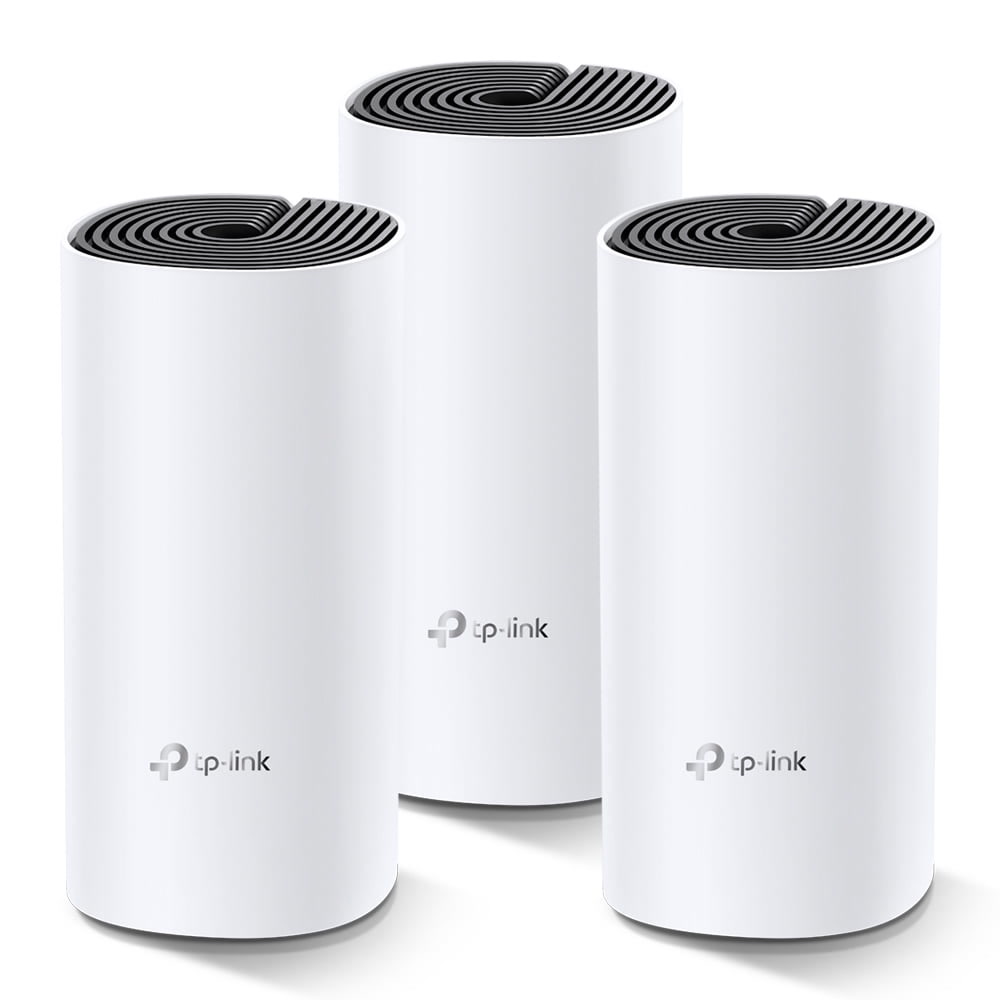
- Dead zones — Areas of your home with weak or no WiFi signal. Garages, basements, and back bedrooms are common culprits.
- Band steering confusion — Your router combines 2.4 GHz and 5 GHz under one network name, and smart devices can’t figure out which band to connect to. This is why half your devices “can’t find the network” during setup.
- Too many devices — Most consumer routers handle 20 to 30 devices before they start dropping connections. A full smart home can easily have 40 to 60 connected devices.
Router vs Mesh: What’s the Actual Difference?
Traditional Router
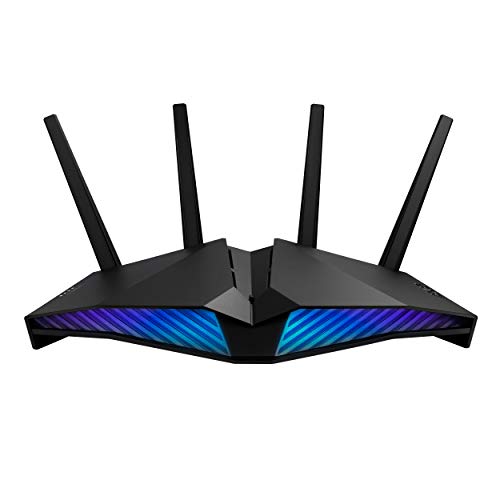
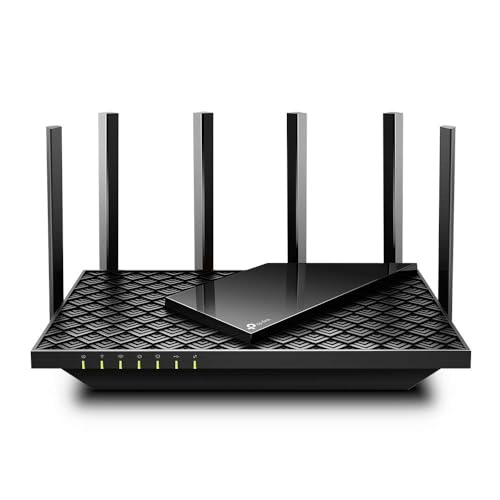
A single device that broadcasts WiFi from one location. Think of it as a sprinkler in the middle of your yard — it covers the area closest to it well, but the edges get less water. For a small apartment or a single-floor home under 1,500 square feet, a good router is plenty.
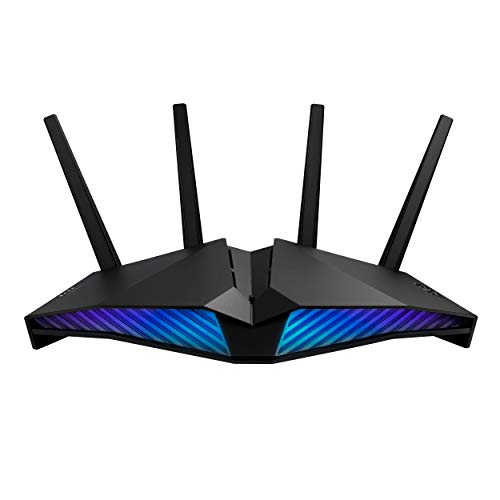
Top picks: TheASUS RT-AX82U (around 150 dollars, WiFi 6, handles 30+ devices) and theTP-Link Archer AX73 (around 100 dollars, solid budget option).
Mesh WiFi System
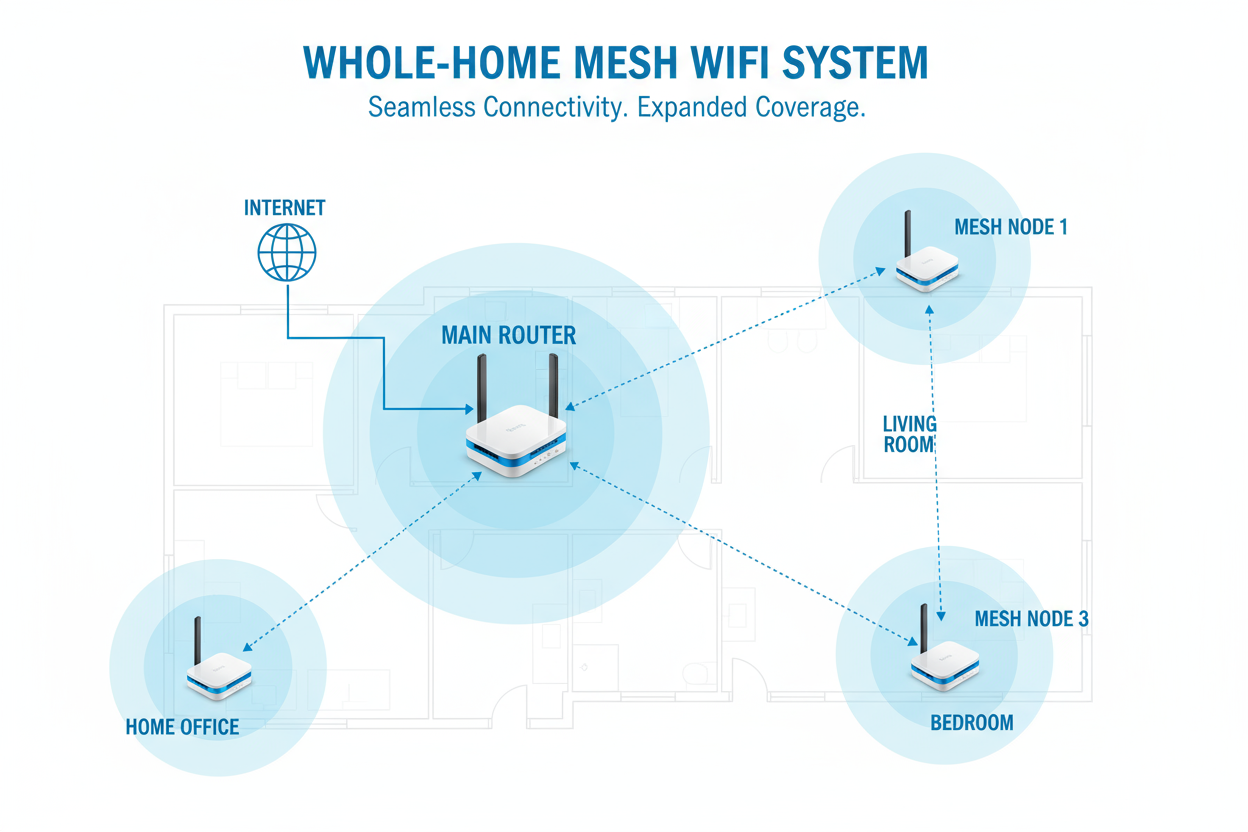
Multiple devices (a main router plus satellite nodes) that work together to blanket your home in WiFi. Instead of one sprinkler in the middle, think of three sprinklers spaced evenly across the yard. Each node talks to the others, so devices connect to the nearest node and hand off smoothly as you move around.
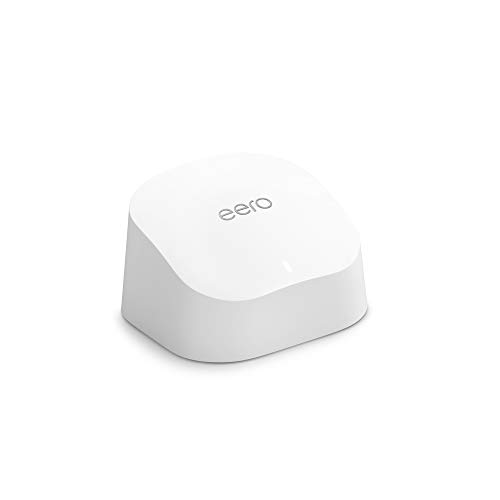
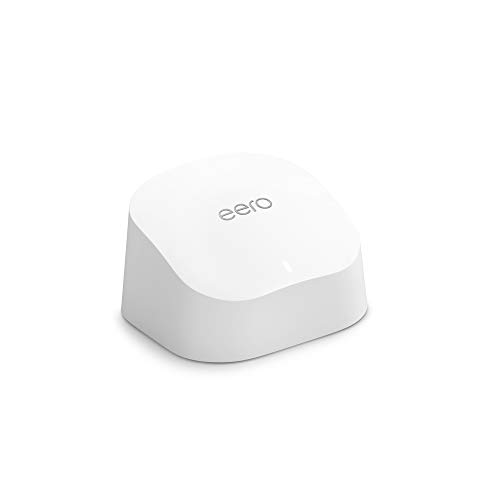
Top picks: Theeero 6+ (around 200 dollars for a 2-pack, incredibly easy to set up) and theTP-Link Deco XE75 (around 200 dollars for a 2-pack, WiFi 6E, better range than eero).
When You Need Mesh (And When You Don’t)
You need mesh if:
- Your home is over 2,000 square feet, or has multiple floors
- You have dead zones (garage, basement, back bedroom, yard)
- You have more than 30 connected devices
- You have devices on different floors that need to communicate with each other
- Your current router requires a range extender (which means you need mesh)
A router is fine if:
- Your home is under 1,500 square feet on one floor
- All your smart devices are within 30 feet of the router
- You have fewer than 25 connected devices
- You don’t have dead zones
The 2.4 GHz Problem (And How to Fix It)
Most smart home devices only connect to 2.4 GHz WiFi. Your phone prefers 5 GHz because it’s faster. Most modern routers combine both bands under one network name and let devices choose. The problem: smart devices often can’t “see” the combined network during setup, or they connect to 5 GHz when they need 2.4 GHz.
The fix: During device setup, temporarily disable the 5 GHz band on your router. Most routers let you do this in the admin panel. Once the device connects on 2.4 GHz, re-enable 5 GHz. The device will stay connected on 2.4 GHz even after the band comes back.
If you have eero, there’s a built-in 2.4 GHz mode in the app that you can toggle during setup. If you have TP-Link Deco, you can set up a separate IoT network on 2.4 GHz only. For more on this, see ourrouter guide for smart homes.
Setting Up Your Network for Smart Home (Step by Step)
- Position your router or main mesh node centrally. Not in a corner, not in the basement, not behind the TV. Center of your home, on the main floor, elevated if possible. WiFi radiates outward and downward.
- Create a separate IoT network. Many mesh systems (eero, Deco, Orbi) let you create a guest or IoT network. Put all your smart home devices on this network. This keeps them separate from your phones and laptops (better security) and lets you apply different settings (2.4 GHz only, no band steering).
- Name your networks clearly. “Home_2.4G” and “Home_5G” or “Home” and “Home_IoT”. Never use the default network name that came with your router — it tells attackers what hardware you have.
- Reserve IP addresses for critical devices. Your thermostat, security cameras, and smart locks should have static IPs so they never get reassigned by DHCP. Most routers let you reserve IPs by MAC address in the admin panel.
- Update your router firmware. Router manufacturers release security patches regularly. Set your router to auto-update if possible. Outdated router firmware is one of the most common entry points for smart home hacks. For more on security, see oursmart home security guide.
Thread and Matter: The Future of Smart Home Networking
Thread is a mesh networking protocol that runs on low-power radios (similar to Zigbee). Matter is the universal smart home standard that runs over Thread or WiFi. Together, they solve many of the networking problems that plague smart homes today:
- Thread devices create their own mesh network, independent of WiFi, so they stay connected even if your router reboots
- Matter devices work across platforms (Alexa, Google, Apple) without custom integrations
- Thread border routers are built into many new smart speakers and hubs (Apple HomePod Mini, eero routers, Nest Hub)
If you’re buying new devices, choose Matter/Thread versions when available. They’re more reliable, more responsive, and won’t become obsolete when the manufacturer discontinues their app. For the full breakdown, see ourMatter 2.0 guide.
Common Mistakes That Kill Smart Home Performance
- Putting the router behind the TV. The TV, the wall, and all the HDMI cables create a signal black hole. Move the router 3 to 4 feet away from any large metal objects.
- Using range extenders. Range extenders create a separate network with a different name, and devices don’t hand off between them smoothly. Use mesh nodes instead.
- Connecting everything to 5 GHz. 5 GHz is faster but has shorter range and doesn’t penetrate walls well. Devices more than one room away from the router should be on 2.4 GHz.
- Ignoring DNS settings. Some smart devices need to reach specific servers. If your DNS is slow or unreliable, devices will drop connections. Use Cloudflare (1.1.1.1) or Google (8.8.8.8) DNS for reliability.
- Not restarting your router. Consumer routers need a restart every 2 to 4 weeks. Set a monthly reminder, or buy a router that supports scheduled reboots.
The Bottom Line
If your smart home keeps dropping devices, the problem is almost certainly your network, not your devices. Spend 200 dollars on a mesh system before you spend 200 dollars replacing “broken” devices that were just out of WiFi range. Create a separate IoT network, give critical devices static IPs, and position your router somewhere central. Do that and most of your connectivity problems will disappear overnight.
n
My take: Fix the network before blaming the devices — split your 2.4 GHz onto its own network name and most “unresponsive” gear comes back to life. Then size the hardware to the house: under 1,500 sq ft wants a good router, anything bigger with dead zones wants a $200 mesh 2-pack.
Related guides
- 12 Smart Home Mistakes Almost Every Beginner Makes (And How to Fix Them)
- How to Choose Your First Smart Home Ecosystem: Alexa vs Google vs HomeKit vs SmartThings vs Home Assistant
- Smart Home Networking Mistakes That Slow Everything Down
- Best Smart Bulbs for Beginners (2026): Color, White, and Everything In Between
- Smart Home Setup Under 100 Dollars: A Realistic Starter Kit That Works
🏠 Get Your Free Smart Home Setup Checklist
Join our newsletter and get this free printable plus weekly tips.
Frequently Asked Questions
Do I need mesh WiFi or is a regular router enough?
A router is fine under 1,500 sq ft, one floor, fewer than 25–30 devices, and no dead zones — the ASUS RT-AX82U (~$150, handles 30+) or TP-Link Archer AX73 (~$100) cover it. You need mesh over 2,000 sq ft, multiple floors, dead zones in the garage or basement, or 30+ devices: the eero 6+ 2-pack (~$200) or TP-Link Deco XE75 (~$200) blanket the home with nodes that hand devices off smoothly.
Why do my smart devices keep losing connection?
Three usual causes: dead zones where WiFi is weakest, band-steering confusion when the router merges 2.4 GHz and 5 GHz under one name (smart devices can't figure out which to join), and router overload — consumer routers choke at 20–30 devices and a full smart home runs 40–60. It's almost always the network, not the device.
Why won’t my smart device find my WiFi during setup?
The 2.4 GHz problem — most smart devices only work on 2.4 GHz, but your phone prefers 5 GHz, and the combined network name confuses the device. The fix: temporarily disable the 5 GHz band on your router during setup, pair the device, then re-enable it. Splitting bands into separate names permanently eliminates the issue.
Liked this guide? Get the next one in your inbox — the smart home starter checklist is free too.
✓ You're in — check your inbox.
No spam. Unsubscribe anytime. We never share your email.
Price Check
Prices verified via our product tracker. Updated Sep 27.
| ASUS RT-AX82U (AX5400) Dual Band WiFi 6 Extendable Gaming | $174.98 | 4.4★ (2,915) |
| TP-Link AX5400 WiFi 6 Router (Archer AX73) | Dual Band Gig | $129.99 | 4.5★ (8,746) |
| eero 6 mesh Wifi router | $89.99 | 4.4★ (29,429) |
As an Amazon Associate we earn from qualifying purchases.