This article contains affiliate links. We may earn a commission from qualifying purchases.
Some content on this site is AI-assisted and reviewed by our editorial team.
Why Your Smart Home Feels Slow
You bought the smart speaker, the smart bulbs, the smart thermostat. You followed every setup guide to the letter. But your lights take three seconds to turn on, your thermostat forgets its schedule, and your camera feeds buffer like it is 2005. The problem is not your devices. It is your network.
Most smart home problems trace back to the same root cause: a router that was never designed to handle thirty always-on devices. The good news is that fixing your smart home network is easier and cheaper than replacing every gadget you own. Here are the most common networking mistakes that slow smart homes down and exactly how to fix each one.
Mistake 1: Using Your ISP Router for Everything
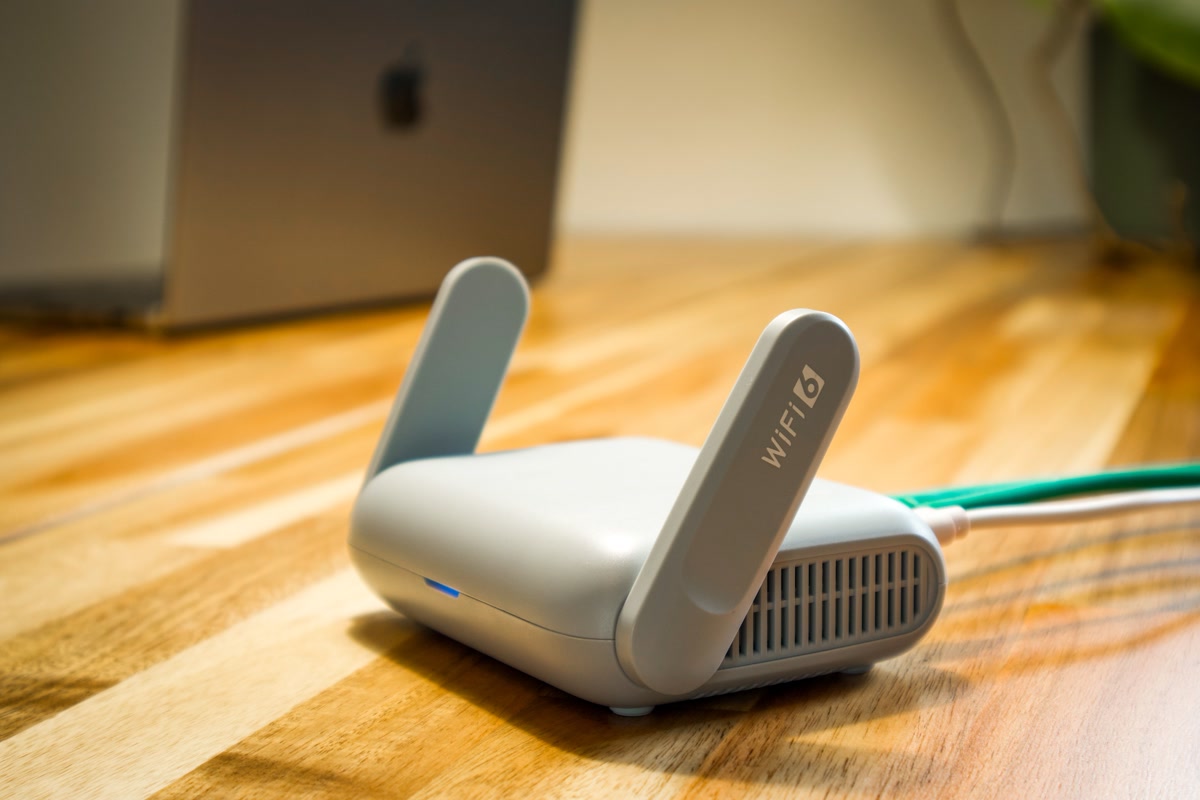
The router your internet provider gave you was built for one purpose: getting you online. It was not built to manage twenty smart plugs, four cameras, three speakers, and a video doorbell all fighting for bandwidth at the same time. ISP routers have weak processors, limited memory, and Wi-Fi radios that struggle past ten connected devices.
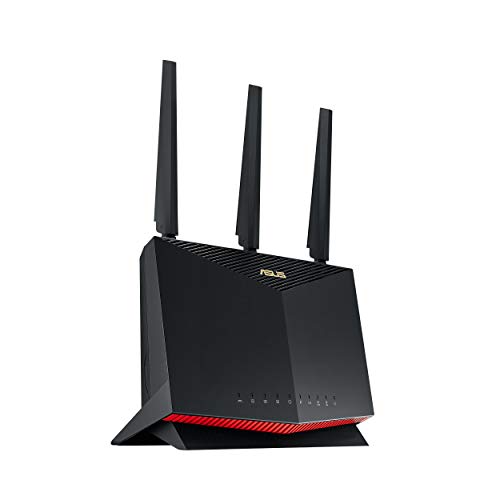
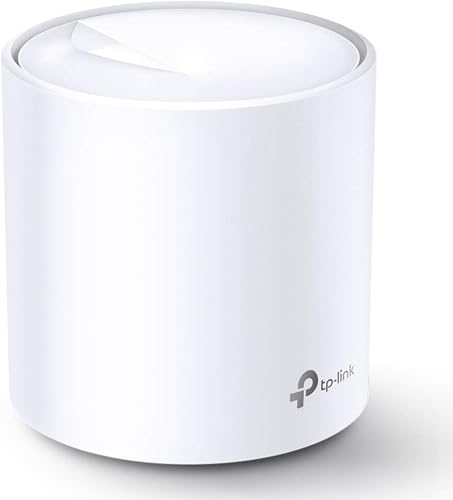
If you have more than fifteen smart home devices and you are still using the provider router, upgrading to a dedicated router or mesh system will do more for your smart home than any single device purchase. Look for routers withtri-band Wi-Fi 6 support and at least 512 MB of RAM. These handle dozens of simultaneous connections without breaking a sweat.
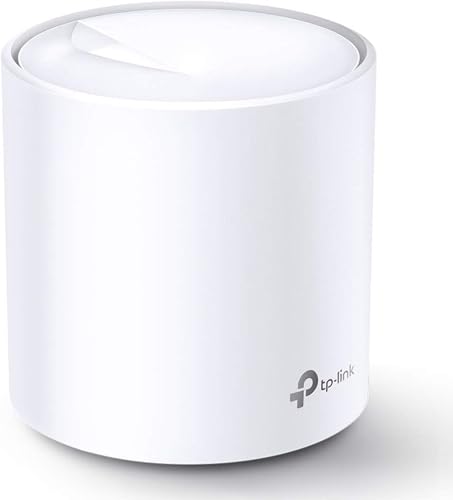
Recommended:TP-Link Deco X20 Mesh System for most homes under 2,000 square feet.ASUS RT-AX86U if you prefer a single powerful router over mesh.
Mistake 2: Putting Your Router in the Wrong Place
Wi-Fi signals travel outward from your router in all directions, but they lose strength every time they pass through walls, floors, and especially metal. If your router is stuck in a closet, behind a TV, or down in the basement, your smart devices on the second floor are already starting at a disadvantage.
The ideal router placement iscentral, elevated, and in the open. Think of it like a ceiling light: you would not put a ceiling lamp inside a cabinet and expect the room to be bright. Your router works the same way. Put it on a shelf or mount it on a wall at about head height, roughly in the center of your home.

For two-story homes, place the router on the first floor ceiling or the second floor near the stairwell. The stairwell opening lets signal travel between floors with minimal obstruction.
Mistake 3: Mixing 2.4 GHz and 5 GHz Without a Plan
Most smart home devices only connect to the 2.4 GHz band. It has better range and penetrates walls more effectively than 5 GHz. But many routers combine both bands under a single network name with “band steering,” which can cause devices to hop between bands unpredictably. Your smart lock might connect to 2.4 GHz at setup, then get nudged to 5 GHz by the router, then drop off entirely because 5 GHz cannot reach the front door.
The fix is toname your 2.4 GHz and 5 GHz networks separately. Call them something like “MyHome” for 2.4 GHz and “MyHome-5G” for 5 GHz. Connect all your smart home gadgets to the 2.4 GHz network. Reserve 5 GHz for phones, laptops, and streaming devices that benefit from the faster speeds and are usually closer to the router.
If your router does not let you split the bands, check the admin settings for a “band steering” or “Smart Connect” toggle and turn it off. Most ISP routers and modern mesh systems hide this option, but it is there.
Mistake 4: Ignoring Wi-Fi Channel Congestion
If you live in an apartment building or a dense neighborhood, your router is competing with every other router within range for the same Wi-Fi channels. On 2.4 GHz, there are really only three non-overlapping channels: 1, 6, and 11. If your neighbor’s router is on channel 6 and yours is on channel 6, both signals fight each other and everyone loses speed.
Download a free Wi-Fi analyzer app on your phone. Stand near your router and check which channels are crowded. Then log into your router admin panel and manually switch to the least crowded channel. This takes five minutes and can double your 2.4 GHz performance overnight.

On 5 GHz, congestion is less of a problem because there are far more channels available. But if you notice your 5 GHz devices dropping, check that your router is using DFS channels (52 through 144). Some routers avoid these because they share spectrum with radar, but if no radar is nearby they are wide open.
Mistake 5: Not Using Ethernet for Fixed Devices
Not everything needs Wi-Fi. Your smart TV, game console, desktop computer, and network-attached storage all sit in one place permanently. Each one you connect via Ethernet is one fewer device competing for Wi-Fi bandwidth, and Ethernet is faster, more reliable, and lower latency than any Wi-Fi connection.
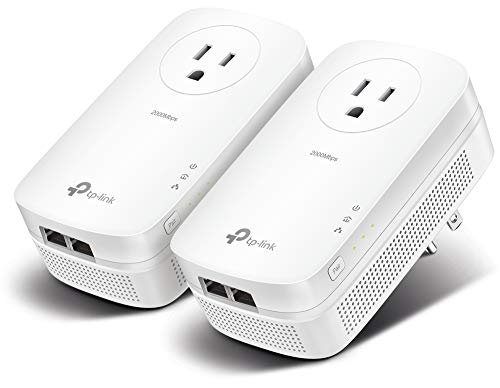
Run a cable to everything that does not move. If your router is too far from your TV, consider apowerline adapter orMoCA adapter that sends network data through your existing electrical wiring or coaxial cables. It is not as fast as a direct Ethernet cable, but it is far more stable than Wi-Fi for streaming devices.
Recommended:TP-Link Powerline Adapter for easy wired connections without running cables through walls.
Mistake 6: Skipping Quality of Service Settings
Quality of Service, or QoS, tells your router which traffic to prioritize when the network gets busy. Without QoS, a large file download on your laptop can crowd out the tiny but time-sensitive packets your smart lock needs to respond to a voice command. The lock only needs a few kilobytes, but if the download hogs the queue, the lock waits.
Most modern routers have a simple QoS setting. Look for it under Advanced or Traffic Management in your router admin panel. Enable it and set your smart home devices to high priority. Some routers let you prioritize by device name or MAC address. Others have an automatic mode that detects real-time traffic like voice calls and video streams and prioritizes them automatically.

Mistake 7: Never Updating Router Firmware
Router firmware updates do not just fix security holes. They also improve Wi-Fi performance, fix connection drops, and add better device handling. Most people never update their router because there is no app reminding them and the admin panel is not something you check for fun.
Set a calendar reminder to check for router firmware updates once a month. Many modern routers have an auto-update option in the admin panel. Turn it on if available. If your router is more than four years old and no longer receiving updates, it is time to replace it. Old firmware on old hardware is the single biggest hidden cause of smart home reliability problems.
Mistake 8: Assuming Mesh Will Solve Everything
Mesh Wi-Fi systems are popular for good reason: they blanket your home in Wi-Fi by using multiple access points instead of one. But mesh is not a magic fix. If your backhaul, the connection between mesh nodes, is wireless, each hop between nodes cuts your bandwidth roughly in half. A three-node mesh system with two wireless hops can leave your furthest devices with a fraction of your original speed.
If you are investing in mesh,use wired backhaul whenever possible. Run Ethernet cables between your mesh nodes or use MoCA adapters through coaxial cables. Wired backhaul means every node delivers full speed, and your smart home devices at the edges of your network perform just as well as the ones near the main router.
Quick Fixes You Can Do Today
Before you buy anything, try these free improvements right now:
- Reboot your router — clears memory and refreshes connections. Do this once a month.
- Move your router — even a few feet can make a noticeable difference. Get it out of cabinets and off the floor.
- Split your bands — separate 2.4 GHz and 5 GHz network names so smart devices stay on the right band.
- Check your channel — use a Wi-Fi analyzer app and move to a less crowded channel.
- Enable QoS — prioritize smart home device traffic over large downloads.
- Update firmware — check your router admin panel for any available updates.
These six steps cost nothing and take less than thirty minutes combined. If your smart home is still unreliable after that, it is time to upgrade the hardware.
The Bottom Line
Your smart home is only as reliable as the network it runs on. No amount of premium devices will fix a network that cannot handle them. Start with the free fixes: router placement, channel selection, band splitting, and QoS. If those are not enough, invest in a better router or mesh system with wired backhaul. The difference between a smart home that frustrates you and one that just works usually comes down to about a hundred dollars and an hour of setup.
n
My take: Before blaming your “slow” bulbs, fix the three network mistakes — the ISP router, the closet placement, and the merged 2.4/5 GHz bands. A mid-grade tri-band router in a central, open spot fixes more smart home complaints than every gadget upgrade combined, and it’s a one-time $150–200 spend.
Related guides
- How to Choose Your First Smart Home Ecosystem: Alexa vs Google vs HomeKit vs SmartThings vs Home Assistant
- Smart Home for Absolute Beginners: Your First 30 Days
- The Smart Home Mistake That Costs You More Than Any Device Can Save You
- Home Assistant for Beginners: Take Back Control of Your Smart Home (No Cloud Required)
- Best Smart Bulbs for Beginners (2026): Color, White, and Everything In Between
🏠 Get Your Free Smart Home Setup Checklist
Join our newsletter and get this free printable plus weekly tips.
Frequently Asked Questions
Why is my smart home so slow?
It’s almost always the network, not the devices: a router that was never designed to handle thirty always-on devices. ISP routers have weak processors and struggle past ten connections; if you have more than fifteen smart devices, a dedicated tri-band Wi-Fi 6 router or mesh system with at least 512 MB of RAM does more for your setup than any single device purchase.
Where should I put my router for smart home devices?
Central, elevated, and in the open — like a ceiling light, not a cabinet lamp. Signals lose strength through every wall, floor, and especially metal, so a router in a closet or basement starts your second-floor devices at a disadvantage. For two-story homes, put it near the stairwell so signal travels between floors with minimal obstruction.
Should I split my 2.4 GHz and 5 GHz networks?
Yes — most smart devices only work on 2.4 GHz, but band-steering (both bands under one name) can nudge your smart lock onto 5 GHz where it can’t operate, then drop it. Split them into separate network names and keep smart devices on the 2.4 GHz side: it has better range and penetrates walls more effectively, which is exactly what a lock on an exterior door needs.
Liked this guide? Get the next one in your inbox — the smart home starter checklist is free too.
✓ You're in — check your inbox.
No spam. Unsubscribe anytime. We never share your email.