
This article contains affiliate links. We may earn a commission from qualifying purchases.
Some content on this site is AI-assisted and reviewed by our editorial team.
Your Smart Speaker Is Always Listening
You asked for convenience. You got a microphone in every room. The same devices that turn off your lights with a voice command are also collecting data about your routines, conversations, and habits. Amazon, Google, and Apple have built massive businesses on understanding what happens inside your home — and they’re not volunteering to share less.
But here’s the good news: you don’t have to throw your Echo in the trash or go back to flipping switches manually. Privacy in a smart home isn’t all-or-nothing. It’s a series of deliberate choices, and most take less than five minutes. Let’s walk through what’s happening, what you can do about it, and how to find the balance that works for you.

What Your Devices Actually Collect
Let’s be specific. Here’s what the major platforms are recording:
- Alexa (Amazon): Every voice interaction is recorded and stored by default. Amazon uses these recordings to improve Alexa’s accuracy — and has admitted that Echo devices sometimes send audio to human reviewers. Your voice profile, device usage patterns, shopping habits, and even the times of day you’re home are all part of the dataset.
- Google Home: Google keeps a full history of voice commands tied to your account. Location data, routine patterns, and interactions with Nest Hub devices are all logged. If you use Google Assistant across phone and speakers, that data merges into a single profile.
- HomeKit (Apple): Apple collects less voice data by default and processes more on-device, but HomeKit still logs device interactions, automation history, and home occupancy patterns through HomePod Mini units.
- Cameras and doorbells: Every motion event, every face the camera “sees,” every clip it records — that data lives on someone else’s server unless you configure local storage.
- Usage patterns: When you turn lights on, what temperature you prefer, when you leave for work — these are revealing when aggregated, and smart home platforms log all of it.
Your smart home data paints a detailed picture of your life. For more on common traps, see our guide on smart home mistakes beginners make.
The Privacy Settings You Should Change Right Now
Stop reading and do these. Seriously — open a new tab for each one. Most take under a minute.
- Disable voice recording storage (Alexa): Open the Alexa app → Settings → Alexa Privacy → Manage Your Alexa Data → Voice recordings → Choose “Don’t Save” and confirm. You can also delete everything they’ve already stored from this same screen.
- Turn off voice activity (Google): Go to myactivity.google.com → Voice & Audio Activity → Turn off. This stops Google from saving future voice commands and clips.
- Review and delete your history: Both Amazon and Google let you bulk-delete past recordings. On Alexa: Settings → Alexa Privacy → Review Voice History → delete all. On Google: Activity Controls → Manage Activity → delete by date range. The data you’ve already generated is the biggest risk.
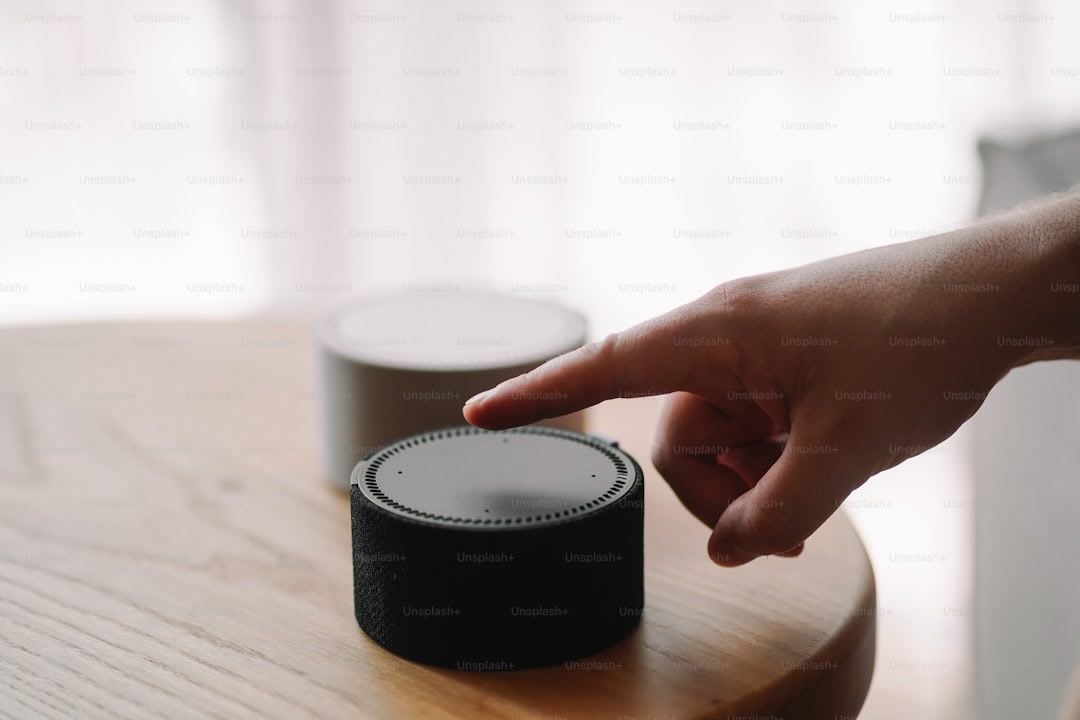
- Mute the mic when you’re not using it: Every Echo and Nest Hub has a physical mic mute button. Use it during conversations you’d rather keep private. It’s not paranoia — it’s hygiene.
- Disable camera when not in use: For devices with cameras like the Echo Show, use the physical camera shutter. For Nest Hub Max, the camera can be disabled in settings or covered with a slider.
- Opt out of data sharing: Both Amazon and Google allow you to opt out of using your data for product improvement. Alexa Privacy → Manage Your Alexa Data → Help Improve Alexa → turn it off. Google Activity Controls → disable personalization where possible.
These settings won’t make you invisible, but they dramatically reduce what flows out of your home. Think of it as closing the curtains.
Camera Privacy: Who’s Watching You Watch Your Door?
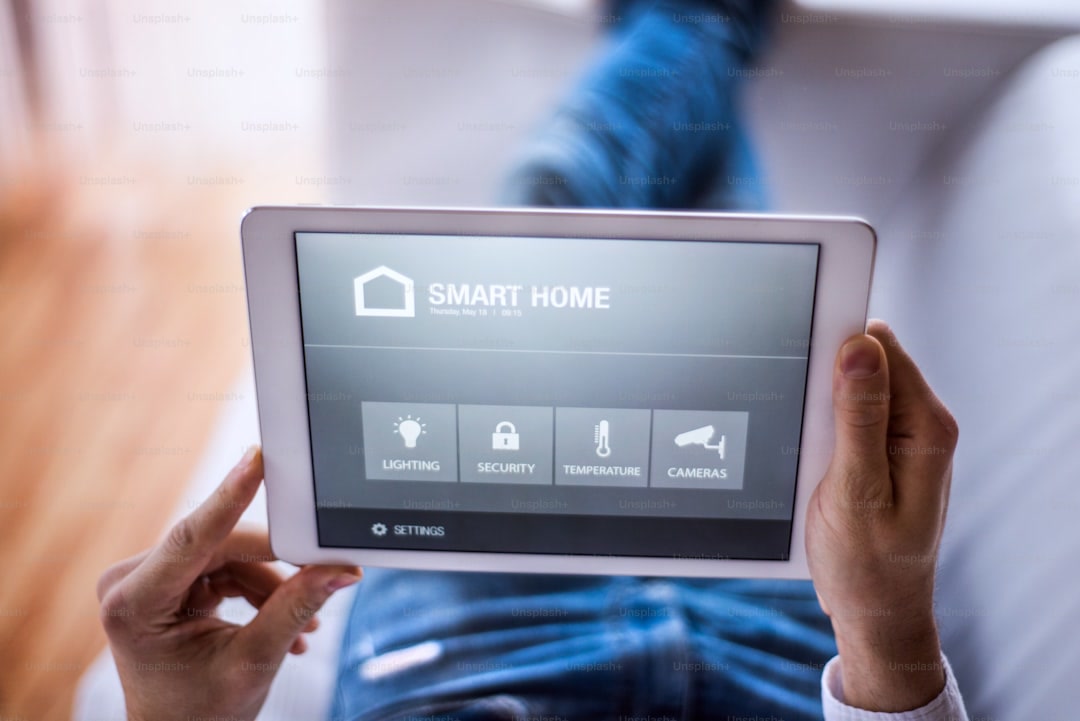
Smart cameras are the most privacy-sensitive devices in your home, and the big brands have not earned the benefit of the doubt.
- Ring (Amazon): Ring has faced repeated scandals — from sharing footage with police without consent to employees viewing customer videos. Default settings still push cloud storage and law enforcement partnerships. See our Ring vs Wyze camera comparison for the full breakdown.
- Wyze: Wyze had a nightmare moment in 2023 when a security flaw let some users see into other people’s cameras. They’ve since added local storage options and two-factor authentication, but their track record is a cautionary tale about cheap cloud-dependent cameras.
- Local storage options: If camera privacy is a priority, look at cameras that support local microSD storage or NVR setups. The Reolink Argus 4 Pro stores footage on local SD cards with no cloud requirement. For a full local system, Reolink NVR kits keep everything in your house.
The pattern is clear: cloud-dependent cameras mean your footage lives on someone else’s servers, subject to their policies and their breaches. Local storage keeps the data where it belongs — in your home.

Local vs Cloud Control: The Home Assistant Solution
If you’re serious about smart home privacy, the answer is local control — and that means Home Assistant.
Home Assistant runs on hardware you own, inside your network, processing automations without sending anything to Amazon or Google. When you say “turn off the living room light” through a local voice assistant, the command stays home. No cloud round-trip, no data harvesting, no terms-of-service changes that share more than you intended.
Our Home Assistant beginner guide walks you through setup, but let’s be honest about the trade-offs:
- The good: Full local control, no subscription fees, works when your internet goes down, supports virtually every smart device brand, and your data never leaves your house.
- The effort: Home Assistant has a learning curve. It’s not as plug-and-play as Alexa. You’ll need a Home Assistant Green or Yellow hub, some patience, and willingness to learn.
- The middle ground: Start with Home Assistant controlling a few devices and keep Alexa for voice commands. Gradually move more local as you get comfortable.
For most people, the realistic path is progressively moving critical automations local while keeping voice assistants for convenience. Every device you pull off the cloud is one less data stream leaving your home. See our Alexa vs Google Home breakdown for how the voice assistants compare on privacy.
Your 30-Minute Privacy Checklist
Here are five things you can do right now that make a real difference:
- 1. Delete your voice history. Open Alexa Privacy or Google My Activity and wipe everything. This takes two minutes and removes years of accumulated recordings. Set a monthly reminder to do it again.
- 2. Disable voice recording storage. Stop both platforms from saving future clips. This is a one-time setting that protects everything going forward.
- 3. Enable two-factor authentication on every smart home account. Use an authenticator app, not SMS. Hardware security keys are even better if you want to go further.
- 4. Mute the mic physically. Hit the button on your Echo or Nest Hub when you’re having a real conversation. The physical disconnect is the only guarantee the mic isn’t listening.
- 5. Move one camera to local storage. Start with your most sensitive camera — usually the indoor one — and switch it to SD card or NVR recording instead of cloud. A Reolink NVR kit makes this straightforward for multiple cameras.
Total time: under 30 minutes. Total impact: dramatically less data leaving your home. For more on protecting your setup without spending a fortune, see our guide on smart home security on a budget.

You Don’t Have to Choose Between Convenience and Privacy
The smart home industry wants you to think privacy and convenience are opposites. They’re not. You can have voice control and control over your data. You can have smart cameras and decide who sees the footage. You can have automations and keep them running locally when the internet goes down.
The key is intentionality. Default settings are designed for the companies’ benefit, not yours. Changing them takes minutes. Moving devices to local control takes a weekend. Neither requires giving up the smart home experience you signed up for.
Start with the checklist above. Delete your history, mute the mic, turn off recording. Then, when you’re ready, look at Home Assistant for local control. Every step is a step forward — and you don’t have to take them all at once.
Your home is yours. Make sure the data stays that way too.
n
The Bottom Line
Smart home technology works best when it solves real problems in your daily routine. Pick the devices that address your specific needs, set them up properly, and let the automations handle the rest. The right setup saves you time, money, and frustration every single day.
🏠 Get Your Free Smart Home Setup Checklist
Join our newsletter and get this free printable plus weekly tips.
Price Check
Prices verified via our product tracker. Updated Sep 27.
| Amazon.com: 5-20T Boys Swim Trunks with Brief Liner Swim S | $18.99 | |
| Amazon.com: Google Nest Hub Max 10" Smart Display with Goo | $299.99 | 4.2★ (224) |
| Amazon.com: Apple - HomePod mini - Black : Electronics | $1,500.00 | 3.9★ (365) |
| Amazon.com: Google Nest Hub 7” Smart Display with Google A | $99.00 | 4.2★ (1,150) |
| Amazon.com : WYZE Cam v4 (Latest Model), 2.5K AI Security | $104.97 | 4.3★ (11,330) |
| Aqara Smart Retrofit Lock U200 with Apple Home Key & Finge | $249.98 | 2.7★ (2,047) |
| Amazon.com: Ring Indoor Cam, Home or business security in | $24.99 | 4.7★ (46,054) |
As an Amazon Associate we earn from qualifying purchases.