This article contains affiliate links. We may earn a commission from qualifying purchases.
Some content on this site is AI-assisted and reviewed by our editorial team.
Your smart home is only as secure as its weakest device — and hackers already know it. Here’s how to lock it down in 30 minutes, no tech expertise required.
Your Smart Home Has a Target on Its Back
Every smart device you add is another door a hacker could walk through. That cheap security camera? It might be broadcasting your living room to strangers. That smart lock like the August WiFi Smart Lock? Someone could be toggling your deadbolt from across the world.
The good news: securing your smart home doesn’t require a computer science degree. Six straightforward steps — most under five minutes each — eliminate the vast majority of real-world threats.
The Risks Aren’t Theoretical
Before we get into fixes, understand what you’re protecting against:
- Botnet takeovers — The Mirai botnet hijacked hundreds of thousands of IoT devices and used them to take down major websites. Your device could be next.
- Camera hacking — Thousands of smart cameras stream to the open internet with default credentials. Attackers watch families in their homes, sometimes even speaking through two-way audio.
- Door unlock exploits — Researchers have demonstrated ways to unlock popular smart locks remotely, and criminals have used those techniques in real break-ins.
- Data theft — Smart devices collect when you’re home, your routine, even what you say. That data is dangerous in the wrong hands.
This isn’t fear-mongering. Now let’s fix it.
Step 1: Change Every Default Password Immediately
This is the single most important step. Default passwords are publicly available in user manuals that anyone can find online. Hackers have automated tools that try every known default password in seconds.
Start with these high-priority devices:
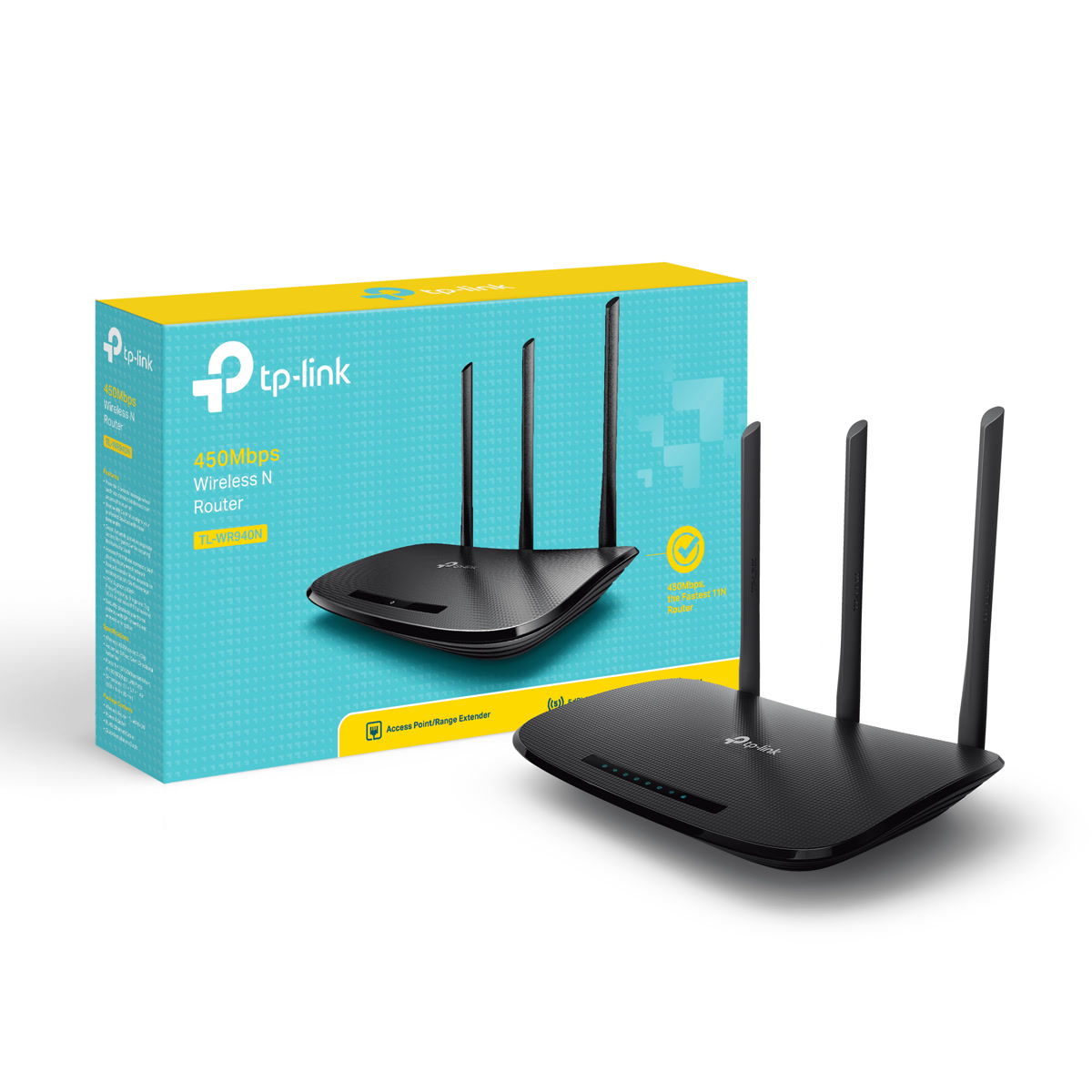
- Your router — This is the gateway to everything. Change both the admin password and the Wi-Fi password. Consider upgrading to a router with built-in security features.
- Security cameras like the Ring Stick Up Cam — These are the #1 target for IoT attacks. Change the admin password on every camera immediately. Look for cameras that enforce strong password policies during setup — they’re far harder to compromise.
- Smart locks and garage door openers — If it opens your home, protect it. Look for locks that enforce strong passwords.
- Smart speakers and displays — These listen to you constantly. Speakers with physical microphone mute buttons give you a hardware-level guarantee they’re not listening.
Use a unique password for every device — reusing means one breach compromises everything. A password manager makes this painless; most cost under 30 dollars a year and are worth every penny.
Already making other beginner mistakes? We’ve compiled the most common ones — and how to fix them.
Step 2: Update Everything — Automatically
Firmware updates patch security holes that attackers are actively exploiting. Most people never install them.
The fix is simple: enable automatic updates on every device that offers the option.
- Router — Check its web interface or app for a firmware update setting. Enable auto-update if available.
- Phones and tablets — Turn on automatic OS updates and automatic app updates.
- Smart home apps — Open each app and check for device firmware updates. Many cameras and locks ship with outdated firmware.
- Smart hubs — If you’re running Home Assistant, keep it updated for the latest security patches.
For devices without auto-update, set a monthly reminder to check. Newer hubs and devices with automatic update support stay secure without you having to think about it.
Step 3: Segment Your Network
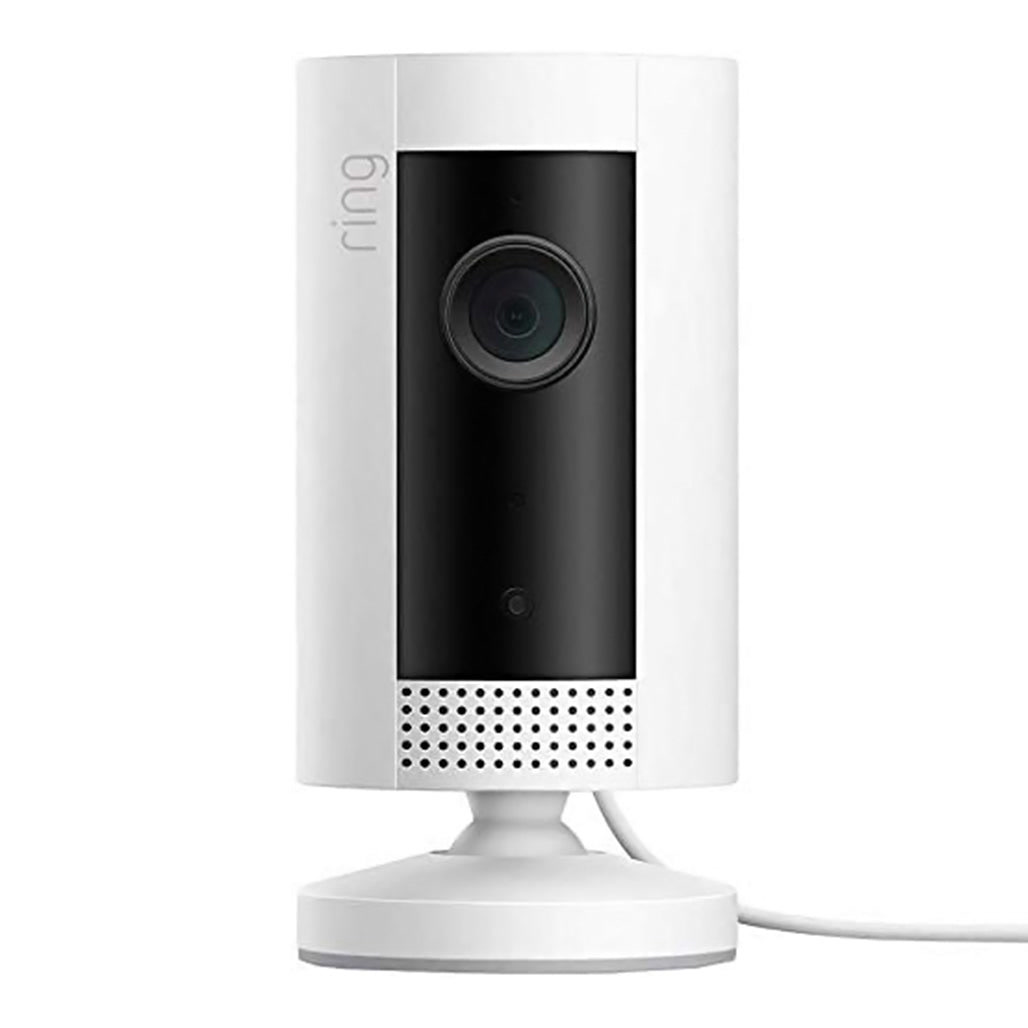
Right now, your smart TV, thermostat, and that sketchy off-brand light bulb are probably on the same network as your laptop. If someone compromises the light bulb (yes, real attack vector), they can reach your personal data.
Network segmentation fixes this by creating separate zones:
- Main network — For phones, laptops, tablets, and anything that handles banking or personal data.
- IoT network — For smart home devices. If a camera gets hacked, the attacker can’t reach your laptop.
- Guest network — For visitors. Keep them off both your networks entirely.
Most modern routers support this — look for “guest network” or “VLAN” settings. Routers with built-in IoT isolation make it easy. A managed switch with VLAN support gives you finer control over device communication.
On a tight budget? You can still build a secure setup without overspending.
Step 4: Enable Two-Factor Authentication Everywhere
Two-factor authentication (2FA) means even if someone steals your password, they can’t get in without a second verification from your phone.
Enable 2FA on every app and service that offers it, especially:
- Smart lock apps — Prioritize locks with 2FA support when buying. If someone can unlock your front door from an app, that app needs 2FA.
- Security camera apps — These give access to live video of your home. Protect them accordingly.
- Your router admin account — If your router supports 2FA (many modern ones do), turn it on.
- Smart home platform accounts — Google Home, Alexa, SmartThings, Home Assistant — all support 2FA.
Avoid SMS-based 2FA (vulnerable to SIM-swapping). Use an authenticator app instead — they’re free and take seconds to set up. For critical accounts, a hardware security key provides the strongest protection.
Step 5: Disable Features You Don’t Use
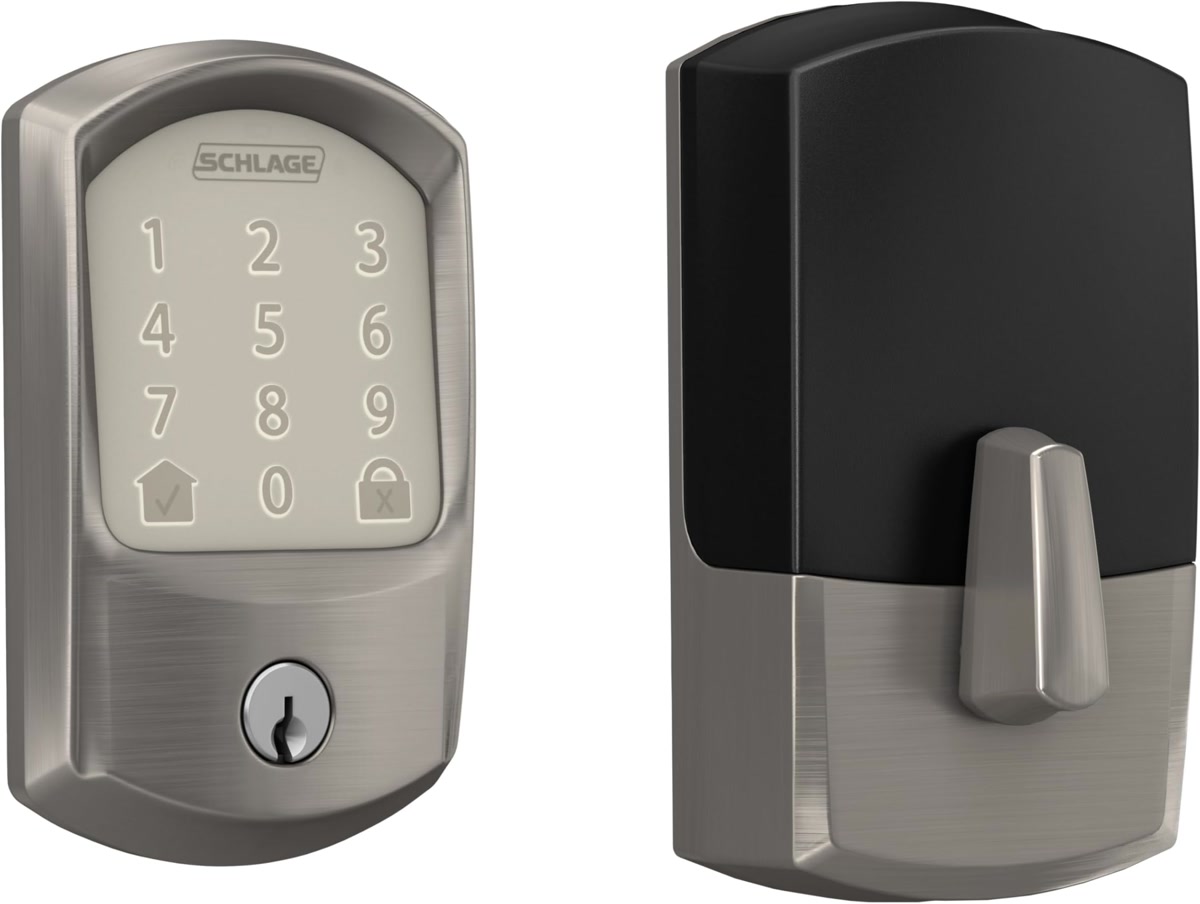
Every feature you enable is another attack surface. Turn off what you don’t need:
- Remote access — If you never check your thermostat from outside the house, disable remote access. Many devices have it enabled by default.
- UPnP (Universal Plug and Play) — This lets devices automatically open ports on your router, which is convenient for hackers too. Disable it in your router settings.
- Cloud connectivity — Some devices work fine locally without phoning home. If you don’t need cloud features, turn them off. Devices with Matter and Thread support are designed to work locally without cloud dependencies.
- Bluetooth discovery — Set devices to “hidden” or “non-discoverable” when you’re not pairing.
- Voice purchasing — Disable one-click purchasing on smart speakers. You don’t want someone shouting through your window to order themselves a gift.
For a deeper dive into what your devices are sharing, our smart home privacy guide walks through every setting worth checking.
Step 6: Use a Smart Home Hub for Local Control
Most smart devices send your data to the cloud by default. Every command and sensor reading passes through servers you don’t control. A local hub changes the equation:
- Home Assistant — The gold standard for local control. It processes everything on hardware you own, not in someone else’s data center. You can run it on a dedicated device or a Raspberry Pi.
- Local processing means your automations work even when the internet goes down, and your data never leaves your house.
- Open-source platforms like Home Assistant receive rapid security patches from a large community, often faster than proprietary alternatives.
Our beginner’s guide to Home Assistant walks you through setup in under an hour. It’s one of the most impactful security upgrades you can make.
What to Do If You Think You’ve Been Hacked
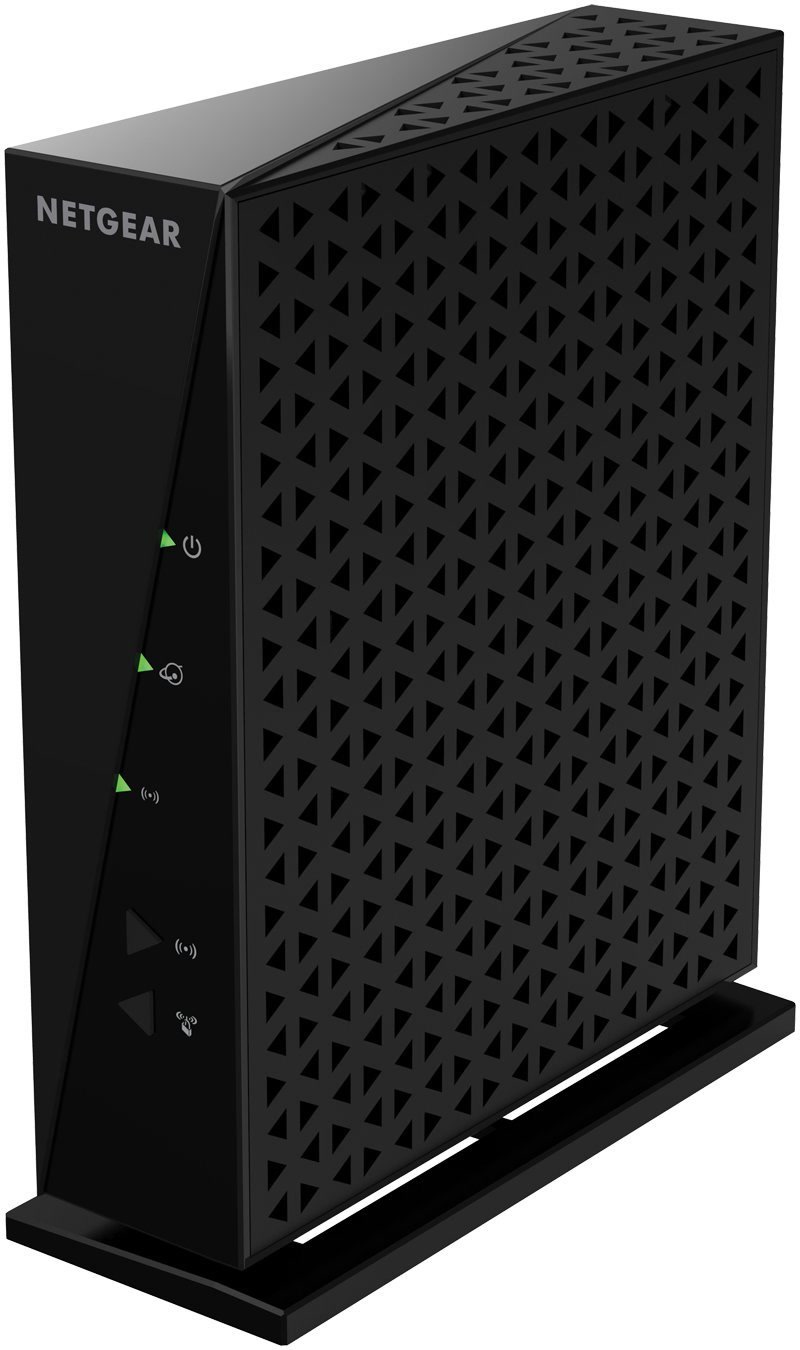
If something feels off — devices acting strangely, unknown devices on your network, unfamiliar login alerts — act immediately:
- Unplug the suspicious device — Physically disconnect it from power and your network.
- Change your router password — This cuts off access to your entire network.
- Change passwords on all smart home accounts — Assume the attacker has your credentials.
- Check your router’s connected devices list — Remove anything you don’t recognize.
- Factory reset affected devices — This wipes any malware, but also wipes your settings.
- Enable 2FA on every account — If you hadn’t already, now is the time.
Network monitoring tools can alert you to suspicious activity before it becomes a full breach. Cameras with local storage instead of cloud also reduce your exposure if a cloud service is breached.
Six Steps, Thirty Minutes, Real Protection
You don’t need to be a security expert. You just need to take these six steps:
- Change every default password — 5 minutes
- Enable automatic updates — 3 minutes
- Segment your network — 10 minutes
- Turn on two-factor authentication — 5 minutes
- Disable features you don’t use — 5 minutes
- Set up local control with Home Assistant — 30 minutes (one-time)
That’s it. These steps address the vast majority of real-world smart home attacks — the actual threats showing up in breach reports every week, not hypotheticals.
For more on choosing secure devices from the start, our smart lock buying guide covers what to look for in security-focused hardware.
Stay safe out there — your home is worth protecting.
n
The Bottom Line
Smart home technology works best when it solves real problems in your daily routine. Pick the devices that address your specific needs, set them up properly, and let the automations handle the rest. The right setup saves you time, money, and frustration every single day.
🏠 Get Your Free Smart Home Setup Checklist
Join our newsletter and get this free printable plus weekly tips.
Price Check
Prices verified via our product tracker. Updated Sep 27.
| Amazon.com : 4ft Propane Hose Adapter 1lb to 20lb,Propane | $11.99 | 4.6★ (4,160) |
| Amazon.com: ASUS RT-AX82U (AX5400) Dual Band WiFi 6 Extend | $174.98 | 4.4★ (2,915) |
| Amazon.com: Ring Outdoor Cam (Stick Up Cam), Weather-Resis | $99.98 | 4.5★ (65,431) |
| Amazon.com : REOLINK Argus PT Ultra First 4K Solar Securit | $159.99 | 3.9★ (3,354) |
| Amazon.com: ULTRALOQ Bolt SE Wi-Fi Smart Lock, Matter Over | $169.98 | 4.3★ (10,322) |
| Password Manager ~ Secure All Passwords - App on Amazon Ap | $1.99 | 2.9★ |
| Amazon.com: NUBASA 8 Port 2.5Gb Switch, Pro-Level 2.5 Giga | $55.99 | 4.7★ (2,026) |
| Yale Assure Lock 2 Keypad Smart Deadbolt with Wi-Fi, Satin | $279.99 | 3.9★ (946) |
| Ring Indoor Cam | Indoor Home Security Camera System | Ama | $84.98 | 4.7★ (46,054) |
| Amazon.com: Aqara Smart Home Hub M3 for Advanced Automatio | $159.99 | 4.1★ (1,679) |
As an Amazon Associate we earn from qualifying purchases.