This article contains affiliate links. We may earn a commission from qualifying purchases.
Some content on this site is AI-assisted and reviewed by our editorial team.
Your smart bulb loses WiFi. Your thermostat goes offline at 3 AM. Your door sensor stops responding. Your speaker says “I’m having trouble connecting to the internet.” You’ve reset, re-paired, and reconnected these devices more times than you can count. The devices aren’t broken — your network just can’t handle them. Here’s how to fix smart home connectivity problems for good.
Root Cause: The 2.4 GHz Problem
About 80 percent of smart home disconnects are caused by one thing: the 2.4 GHz WiFi band. Most smart devices only work on 2.4 GHz. Your phone prefers 5 GHz because it’s faster. Your router combines both bands under one network name (called “band steering”) and lets devices choose. The problem: smart devices often can’t “see” the network during setup because the 5 GHz band confuses them, and they randomly disconnect when the router tries to push them to 5 GHz where they can’t operate.
The fix: Create a separate 2.4 GHz network with a different name (like “Home_IoT”). Most routers and mesh systems let you do this in the admin panel. Put all your smart devices on this network and keep your phone and laptop on the 5 GHz network. This single change eliminates most smart home connectivity problems. For more, see ourWiFi networking guide.
Root Cause: Weak Signal in Dead Zones
Smart devices are often in the worst WiFi locations: the garage, the basement, the back bathroom, the outdoor outlet. These are the same places where your router signal is weakest. A device that barely connects will drop off every time the signal dips, which is constantly.
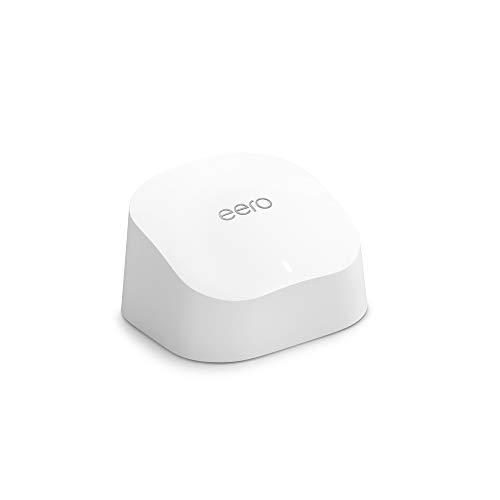
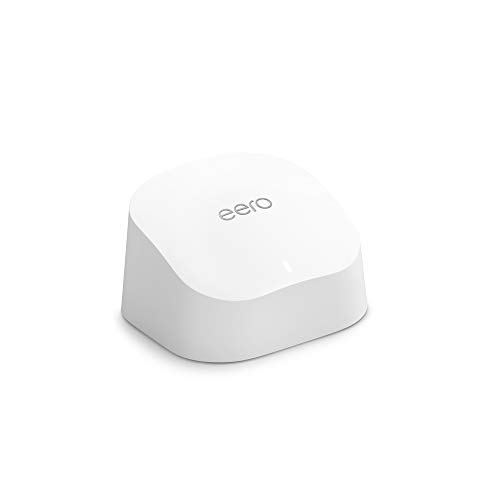
The fix: Add a mesh node or range extender near the dead zone. If you’re using a single router, the cheapest upgrade is a mesh system. Aneero 6+ 2-pack (about 100 dollars) eliminates most dead zones in apartments and smaller homes. For larger homes, a 3-pack covers up to 3,000 square feet.
If you can’t add a mesh node, try moving your current router to a more central location. WiFi radiates outward and downward — not through concrete, not through metal, and not around corners. A router in a corner office reaches one room. A router in a hallway reaches five.
Root Cause: Too Many Devices on One Network
Consumer routers handle 20 to 30 devices before they start dropping connections. A full smart home easily has 40 to 60 devices. If your router is managing your phone, laptop, TV, thermostat, 10 smart bulbs, 5 smart plugs, 3 cameras, 2 speakers, and a doorbell — it’s overwhelmed.
The fix: Split your devices across two networks. Your main 5 GHz network handles phones, laptops, and streaming devices. Your IoT 2.4 GHz network handles smart bulbs, plugs, sensors, and speakers. This doubles your router’s effective device capacity and keeps your streaming from fighting your thermostat for bandwidth.
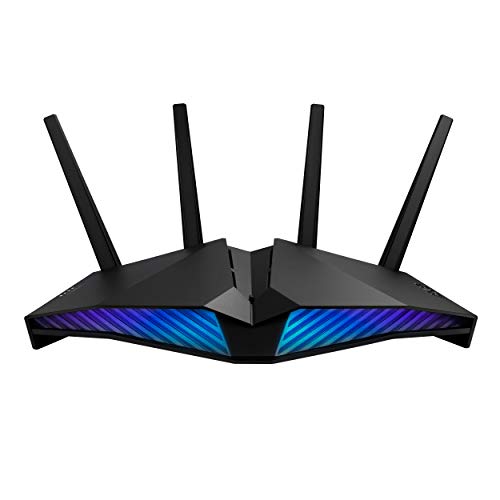
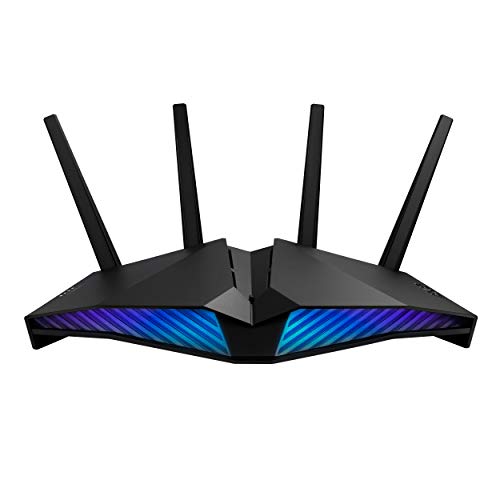
If your router doesn’t support dual networks, it’s time for an upgrade. TheASUS RT-AX82U (about 150 dollars) supports 30+ devices and has built-in IoT network separation. For more router recommendations, see oursmart home router guide.
Root Cause: Device-Specific Issues
Smart Bulbs Keep Disconnecting
Wyze bulbs, Sengled bulbs, and most WiFi bulbs drop off when they’re too far from the router or when the 2.4 GHz band is congested. The fix is the IoT network described above. If that doesn’t work, switch to Zigbee bulbs (Philips Hue,Aqara) connected to a Zigbee hub. Zigbee bulbs don’t use WiFi at all — they create their own mesh network that’s more stable than WiFi. See oursmart bulb guide.
Smart Speaker Keeps Saying “Having Trouble Connecting”
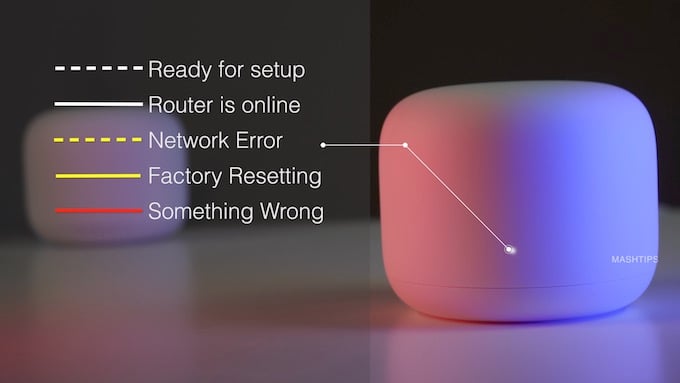
This is almost always a 5 GHz issue. Your Echo or Nest Hub connected to 5 GHz and is now on the edge of the range, or the router is steering it back and forth between bands. Force the speaker to 2.4 GHz by creating a separate 2.4 GHz network (or temporarily disabling 5 GHz during setup). Once connected on 2.4 GHz, re-enable 5 GHz. The speaker will stay on 2.4 GHz.
Thermostat Goes Offline at Night
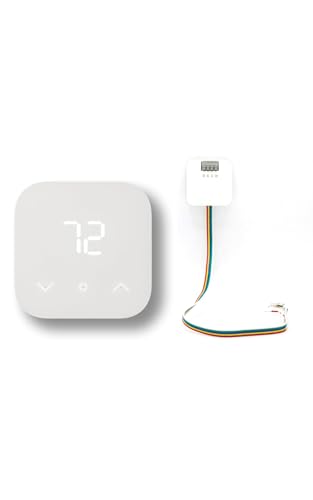
This is usually a power issue, not a network issue. Many smart thermostats (especially Ecobee and Nest) draw power from your HVAC system’s C-wire. If your system doesn’t have a C-wire, the thermostat “steals” power by cycling the HVAC on and off, which can cause it to lose WiFi when it’s conserving battery. The fix: install a C-wire adapter (included with most smart thermostats) or add aC-wire power adapter (about 20 dollars). See ourthermostat guide for more on installation.
Door/Window Sensors Randomly Disconnect
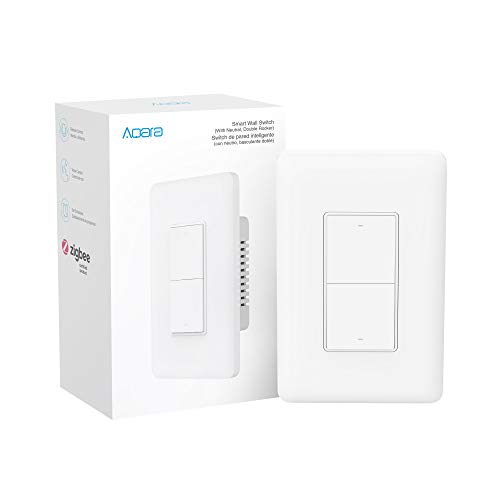
Aqara and other Zigbee sensors disconnect when they’re too far from the hub, or when the hub is too far from your router. Zigbee has a shorter range than WiFi (about 30 feet indoors), but Zigbee devices can relay signals through each other. The fix: add more Zigbee devices between the sensor and the hub (they act as repeaters), or move the hub closer to the center of your home. Every Zigbee device you add strengthens the mesh.
Cameras Keep Going Offline
WiFi cameras are the most bandwidth-hungry smart devices. A single 1080p camera streaming uses 2 to 4 Mbps. Three cameras on a network that’s also handling phones, laptops, and streaming will cause congestion. The fix: put cameras on a separate network, reduce streaming quality to 720p for cameras you don’t actively monitor, and use local storage (SD card or NVR) instead of cloud streaming for 24/7 recording.
The Permanent Fix: Zigbee and Thread
The most reliable smart home network doesn’t use WiFi at all. Zigbee and Thread are low-power mesh protocols that create their own network, independent of your WiFi router. Zigbee devices relay signals through each other, so every device you add makes the network stronger, not weaker.
To switch to Zigbee, you need a Zigbee hub. Options:
- Philips Hue Bridge (50 dollars) — Best for lighting. Controls up to 50 Hue bulbs and accessories.
- Aqara Hub (40 dollars) — Best for sensors, switches, and locks. Works with HomeKit, Alexa, and Google.
- Home Assistant with a Zigbee USB dongle (20 dollars for the dongle) — Best for total control. Manages Zigbee, Z-Wave, WiFi, and Thread devices in one system.
Thread is the next generation of Zigbee (same underlying radio technology, but with IP connectivity and better mesh capabilities).Matter devices that use Thread create their own mesh network. If you’re buying new devices, choose Matter/Thread versions — they’re more reliable than WiFi and more future-proof than Zigbee.
The Quick Fix Checklist
If your smart home keeps disconnecting, do these things in order:
- Create a separate 2.4 GHz IoT network — This fixes 80 percent of smart home WiFi problems.
- Move your router to a central location — Not in a corner, not behind a TV, not in a closet. Center of the house, elevated, away from metal and concrete.
- Count your devices — If you have more than 30 on one network, add a mesh node or upgrade your router.
- Add Zigbee devices instead of WiFi — They’re more reliable and don’t compete with your phone and laptop for bandwidth.
- Check for firmware updates — On your router, on your smart devices, and on your hub. Outdated firmware is a common cause of random disconnects.
- Restart your router monthly — Consumer routers accumulate connection state and memory leaks. A monthly restart clears this. Set a reminder.
The Bottom Line
Smart home disconnects are almost always network problems, not device problems. The device isn’t broken — it’s just not getting a reliable WiFi signal. Create a separate 2.4 GHz network for your IoT devices, add a mesh node if you have dead zones, and migrate to Zigbee and Thread devices whenever possible. Do those three things and your smart home stays connected. Skip them and you’ll keep resetting bulbs and re-pairing sensors forever.
n
My take: Split your smart devices onto a dedicated 2.4 GHz network before blaming the hardware — that one change plus a mesh node for the dead zone fixes 80% of “my smart home keeps disconnecting” complaints permanently. Only then upgrade the router, and buy one with IoT separation when you do.
Related guides
- Smart Home Security on a Budget: A Complete Guide Under $200
- Robot Vacuum Maintenance: The Schedule and Parts That Keep Your Roomba Like New
- Best Smart Displays (2026): Which One Belongs on Your Kitchen Counter?
- Smart Home Gift Guide: What to Buy for People Who Just Got Their First Smart Device
- Philips Hue Wall Switch Modules: Smartify Dumb Bulbs Without Replacing Them
🏠 Get Your Free Smart Home Setup Checklist
Join our newsletter and get this free printable plus weekly tips.
Frequently Asked Questions
Why does my smart home keep disconnecting?
About 80% of the time it's the 2.4 GHz problem: most smart devices only work on 2.4 GHz, but your router merges both bands under one network name, and devices can't see the network during setup or randomly drop when band-steering pushes them to 5 GHz. Create a separate “Home_IoT” 2.4 GHz network for smart devices — this single change fixes most connectivity complaints.
How many smart devices can my router handle?
About 20–30 before consumer routers start dropping connections — and a full smart home runs 40–60. Split devices across two networks (phones and streaming on 5 GHz, bulbs and sensors on the IoT 2.4 GHz) to double effective capacity; if the router can't do that, the ASUS RT-AX82U (~$150) supports 30+ with built-in IoT separation.
Where should I put my router for a smart home?
Somewhere central and open — WiFi radiates outward and downward, not through concrete, metal, or around corners. A router in a corner office reaches one room; a router in a hallway reaches five. For dead zones a mesh node beats an extender: an eero 6+ 2-pack (~$100) eliminates most apartment dead spots, and a 3-pack covers up to 3,000 sq ft.
Liked this guide? Get the next one in your inbox — the smart home starter checklist is free too.
✓ You're in — check your inbox.
No spam. Unsubscribe anytime. We never share your email.
Price Check
Prices verified via our product tracker. Updated Sep 27.
| eero 6 mesh Wifi router | $89.99 | 4.4★ (29,429) |
| ASUS RT-AX82U (AX5400) Dual Band WiFi 6 Extendable Gaming | $174.98 | 4.4★ (2,915) |
| Aqara Zigbee Smart Light Switch (with Neutral, Double Rock | $39.99 | 4.4★ (155) |
| Amazon Smart Thermostat with C-Wire Adapter : Tools & Home | $119.98 | 4.3★ (135) |
As an Amazon Associate we earn from qualifying purchases.