This article contains affiliate links. We may earn a commission from qualifying purchases.
Some content on this site is AI-assisted and reviewed by our editorial team.
Power outage. Internet goes down. And suddenly your smart home is a dumb home. The lights won’t turn on, the thermostat stops responding, the door lock is just a lock, and the voice assistant is a paperweight. You bought all these devices for convenience, and they’re all useless because your ISP had a bad day. Here’s how to build a smart home that keeps working when the internet doesn’t.
Why Smart Homes Fail Without Internet
Most smart home devices rely on cloud servers to function. When you say “turn on the living room light,” the command goes from your speaker to Amazon’s servers, then to the light bulb’s servers, then back to the bulb. Remove the internet and the whole chain breaks. The device is still powered on, the WiFi router is still broadcasting (if you have power), but the command can’t reach the cloud and the device can’t process it locally.
This isn’t a design flaw — it’s the business model. Cloud-dependent devices are cheaper to manufacture because they offload processing to remote servers. They’re also easier to set up because the manufacturer controls the app experience. The tradeoff is reliability: no internet means no control.
The Devices That Keep Working Offline
Not all smart devices are equally dependent on the internet. Here’s what still works when the cloud goes down:
Zigbee and Z-Wave Devices (Mostly)
Devices using Zigbee or Z-Wave protocols communicate with a local hub, not the cloud. If your hub has local processing (likeHome Assistant or Hubitat), your Zigbee and Z-Wave devices keep working. Lights, switches, sensors, locks — they all respond to local commands even without internet.
The key is the hub. If your Zigbee devices connect to a cloud-only hub (like older SmartThings setups), they’re as dead as WiFi devices when the internet drops. But connected to Home Assistant or Hubitat, they keep running.
Thread and Matter Devices
Thread devices create their own mesh network that doesn’t need the internet. If you have a Thread border router (built into Apple HomePod Mini, eero 6+, Nest Hub, and others), Thread devices communicate locally. Matter adds a standard communication layer on top of Thread, so Matter-over-Thread devices work with or without internet.
This is the biggest advantage ofMatter 2.0 — it’s designed for local control first. If you’re buying new devices, choose Matter/Thread versions.
Smart Locks with Physical Keys
Any smart lock with a physical key or keypad works without internet. The lock mechanism is mechanical. The “smart” part (remote locking, auto-unlock) won’t work, but you can still get in and out. If your smart lock doesn’t have a physical key backup, return it. For recommendations, see oursmart lock buying guide.
Battery-Powered Sensors
Door sensors, motion sensors, leak detectors, and temperature sensors all continue to detect events locally. They just can’t send you notifications without internet. If you have a local hub, the hub can still trigger automations — like turning on lights when motion is detected, even without cloud access.
Building an Offline-First Smart Home
Step 1: Run Home Assistant on Local Hardware
Home Assistant is the single most important tool for an offline-capable smart home. It runs on a Raspberry Pi, a mini PC, or a Home Assistant Green/Yellow hub, and it processes everything locally. When the internet goes down, your automations keep running, your devices keep responding, and your dashboard still works.
Setting up Home Assistant takes 30 minutes to an hour. The initial configuration can feel overwhelming, but the core setup — adding devices, creating automations, setting up a dashboard — is straightforward. For a full walkthrough, see ourHome Assistant beginner guide.
Step 2: Use Zigbee and Z-Wave Instead of WiFi
Replace WiFi-based smart devices with Zigbee or Z-Wave alternatives wherever possible. Zigbee devices connect to a local coordinator (your Home Assistant instance with a USB dongle), not to your router. They don’t need the internet to function.
Practical switches:
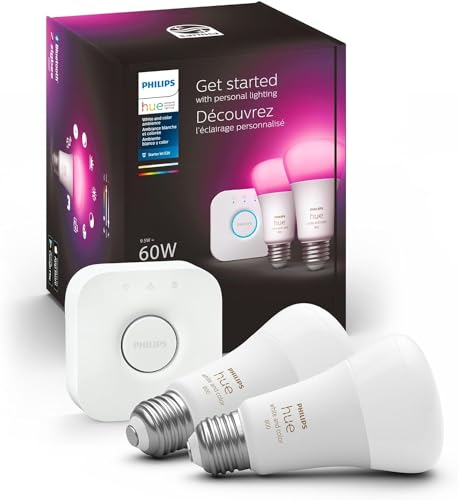
- Lights: Use Zigbee bulbs and switches (Philips Hue, Ikea Tradfri, Aqara) instead of WiFi bulbs (Wyze, Lifx)
- Switches and outlets: Use Zigbee or Z-Wave smart plugs (Aqara, Inovelli) instead of WiFi plugs (Kasa, Wyze)
- Sensors: Use Zigbee sensors (Aqara, Sonoff) instead of WiFi sensors (Ring, Wyze)
- Locks: Use Z-Wave locks (Yale, Schlage) instead of WiFi locks (August WiFi)
Step 3: Set Up a Backup Internet Connection
For the devices that do need internet (cameras, voice assistants, streaming), a cellular backup keeps them online when your ISP fails. Options:
- eero built-in — Some eero models have cellular backup built in (requires eero Plus subscription)
- USB cellular dongle — Connected to your router or Home Assistant for automatic failover
- Phone hotspot — Manually switch when your main internet goes down
Step 4: Battery Backup for Critical Devices
A UPS (uninterruptible power supply) keeps your router, Home Assistant hub, and modem running during a power outage. A 150-dollar UPS will keep these devices running for 2 to 4 hours — enough to ride out most outages.
Critical devices to put on UPS:
- Router and modem
- Home Assistant hub
- Zigbee coordinator (USB dongle)
- Security cameras (if they connect to local storage)
What Still Breaks Without Internet (And What to Do About It)
Voice Assistants
Alexa and Google Assistant need the cloud. Period. When the internet is down, your Echo is a Bluetooth speaker and your Nest Hub is a digital clock. No workaround exists for this.
What works instead: physical buttons and automations. If you set up Home Assistant automations for “good morning” and “good night” routines, they run whether or not you can say the command out loud. Put a physical button (like an Aqara Mini Switch) next to your bed for emergencies.
Cloud Cameras
Ring, Wyze, and Nest cameras need internet to record to the cloud. Without internet, they record nothing. If you care about security during outages, you need local storage — either an SD card in the camera (some Wyze and Reolink models support this) or an NVR (network video recorder) that stores footage on a local hard drive.
Cloud-Dependent Automations
Any automation that calls a cloud service — IFTTT routines, Alexa routines that trigger cloud actions, Google Home scripts that query web services — will fail. Migrate critical automations to Home Assistant, which runs them locally.
A Quick Test: Unplug Your Internet
Want to know how your smart home handles an outage? Unplug your modem for 30 minutes. See what still works, what breaks, and what you can’t live without. Then prioritize fixing the broken stuff.
Most people discover that about half their devices go offline, their voice assistants are useless, and their security cameras stop recording. That knowledge is more valuable than any guide — it tells you exactly where to start.
The Bottom Line
An offline-capable smart home isn’t a luxury — it’s a baseline requirement for anything you depend on (lights, locks, security, climate). The formula is simple: Home Assistant for local processing, Zigbee and Z-Wave for local device communication, a UPS for power backup, and cellular for internet backup. Do those four things and your smart home keeps working when the internet doesn’t. Skip them and you’re one ISP outage away from a house that doesn’t work.
n
My take: The cloud-dependence is a business model, not a design flaw — and the fix is architectural, not a settings tweak. Put a local hub (Home Assistant or Hubitat) at the center, buy Matter/Thread gear going forward, and never keep a smart lock without a physical key backup.
Related guides
- 7 Smart Home Automations That Save You Time Every Day
- Smart Sprinkler Controllers: 4 That Save Water (And 1 That Pays for Itself)
- Smart Home for Aging in Place: What I Set Up for My Mom (And What I Skipped)
- How to Smart-Home Your Garage (Without Spending a Fortune on Features You Don't Need)
- Renter-Friendly Smart Home: The Complete No-Drill, No-Damage Setup Guide (2026)
🏠 Get Your Free Smart Home Setup Checklist
Join our newsletter and get this free printable plus weekly tips.
Frequently Asked Questions
Why do smart home devices stop working when the internet goes down?
Because most are cloud-dependent by design: your voice command travels from the speaker to Amazon's servers, then to the bulb's servers, then back. Cloud processing is cheaper to manufacture and easier to set up, so manufacturers offload the brains — the tradeoff is that no internet means no control, even though the device still has power.
Which smart devices keep working without internet?
Zigbee and Z-Wave devices on a hub with local processing (Home Assistant or Hubitat) — lights, switches, sensors, and locks all keep responding to local commands. Thread and Matter devices mesh locally through a border router, which is why Matter 2.0 is designed for local control first. Smart locks with a physical key or keypad always work mechanically, and battery sensors keep detecting events; they just can't phone you without internet.
How do I build a smart home that survives an outage?
Go offline-first: run Home Assistant or Hubitat as the local brain, choose Zigbee/Z-Wave/Matter over cloud-WiFi gear, get a Thread border router, and make sure any smart lock has a physical key backup — if it doesn't, return it. Then the internet becomes a convenience layer instead of a single point of failure.
Liked this guide? Get the next one in your inbox — the smart home starter checklist is free too.
✓ You're in — check your inbox.
No spam. Unsubscribe anytime. We never share your email.